



This guide covers what the Brave browser cache stores, why it works differently from Chrome’s in a way that actually matters, where the files sit on your disk, and how to clear it properly on every platform. It also corrects the most common piece of cache advice on the internet, which is wrong.
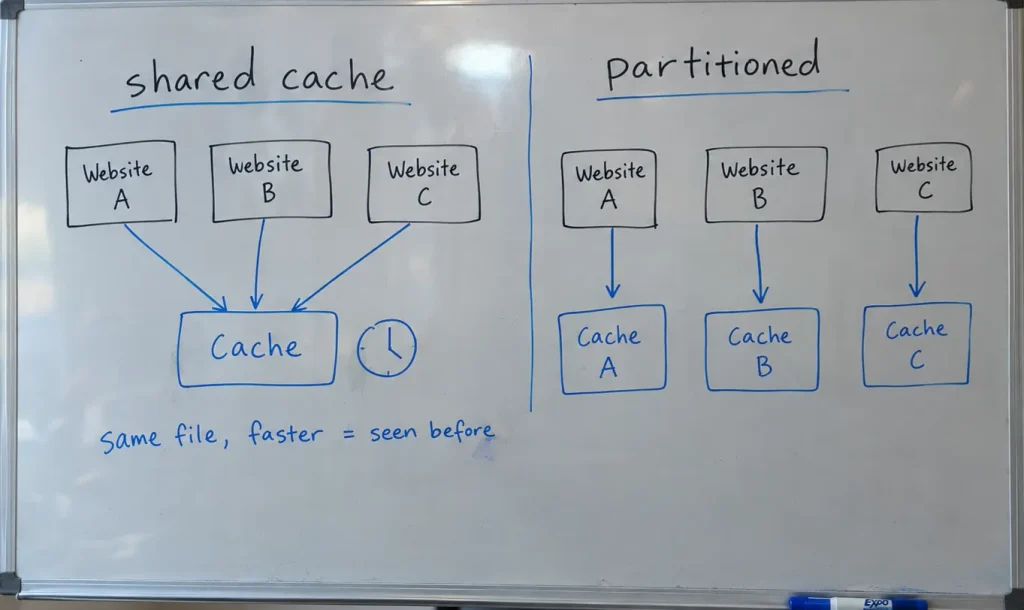
Yes, Brave uses a cache. It stores images, stylesheets, scripts, and fonts locally so repeat visits load faster. What makes Brave different is partitioning: cache entries are keyed to the site you were on, so an advertiser cannot use a shared cached file to recognize you across different websites.
Table of Contents
Does Brave Use Cache?
Yes. Brave caches the same things every browser caches: images, CSS stylesheets, JavaScript files, fonts, and some HTML. It is built on Chromium, so the underlying cache engine is the same one Chrome uses. The first visit to a site downloads these files. Later visits read them from your disk instead.
That saves time and data. It also creates the classic problem in the opening paragraph, where you see yesterday’s version of a page you updated ten minutes ago.
Brave layers privacy behavior on top of that standard engine rather than replacing it. Two of those layers are worth understanding, because they are the only reason this question has an interesting answer at all.
How Brave’s Cache Differs from Chrome’s
Brave partitions its cache and network state by the top-level site you are visiting. A file cached while you were on one site is stored separately from the same file cached on another. Chrome and Edge apply weaker versions of this. The practical effect is that a shared cached resource cannot be used to recognize you across the web.
That sounds abstract. It is not. Here is the attack it prevents.
Say an advertiser serves the same tracking image on a thousand websites. Without partitioning, the first site you visit downloads and caches it. On the second site, the file loads instantly from your cache, and the timing difference tells the advertiser it has seen you before. No cookies required. This is cache-timing tracking, and it works on browsers that keep one shared cache.
Network State Partitioning
Brave describes network state as a collection of dozens of caches and connection data tied to your browsing session. That includes the HTTP cache, but also DNS results, connection pools, and TLS session data. Brave partitions all of it.
In its own write-up on partitioning network state, Brave states that for the browser features most commonly used for tracking, it applies the most aggressive partitioning strategy of any popular browser. That claim comes from the vendor, so weigh it accordingly, but the underlying technique is publicly documented and verifiable in the source code.
Ephemeral Third-Party Storage
The second layer is about when data gets deleted rather than how it is separated. Brave gives third-party content its own temporary storage that is thrown away when you finish with a site.
The timing is the interesting part. Safari clears third-party storage partitions when you close the browser. Brave clears third-party storage when you close the site. If you keep your browser open for two weeks straight, which most people do, that difference is substantial.
| Browser | Cache partitioning | Third-party storage cleared |
|---|---|---|
| Brave | Aggressive, applied to network state broadly | When the site is closed |
| Safari | Partitioned | When the browser is closed |
| Firefox | Partitioned via Total Cookie Protection | Persists per container |
| Chrome | Partitioned, weaker scope | Persists |
| Edge | Partitioned, weaker scope | Persists |
One consequence nobody mentions. Partitioning means the same file can be cached several times over, once per site that loads it. Brave’s cache folder can grow larger than Chrome’s for identical browsing. That is a deliberate trade of disk space for privacy, and it is a fair trade, but it is a trade.
Where Brave Stores Cache Files
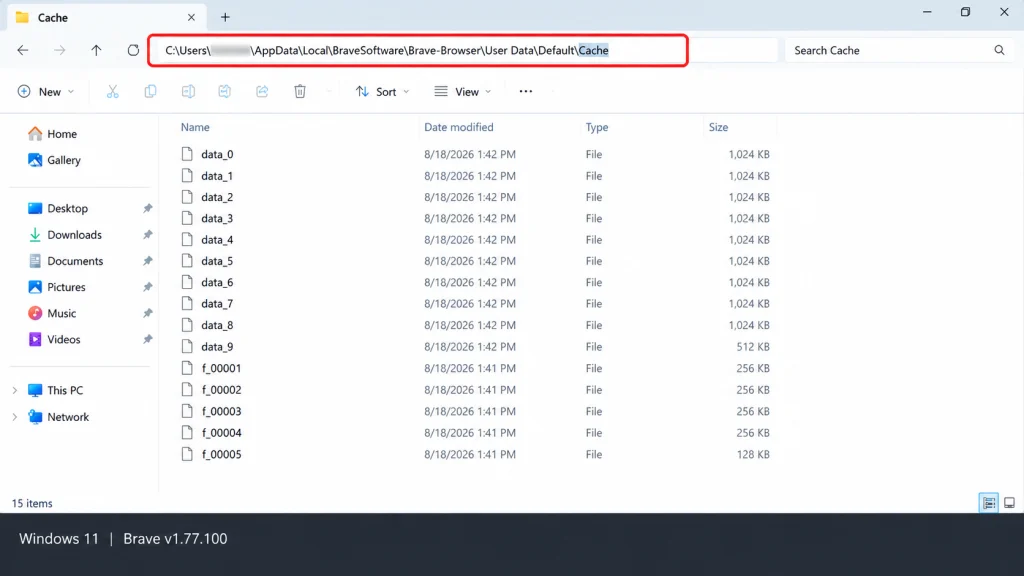
Brave keeps cache files in a per-profile folder outside the main browsing data directory. The Default in each path below is your profile name. If you use multiple Brave profiles, each has its own folder named Profile 1, Profile 2, and so on.
| System | Path |
|---|---|
| Windows | %LOCALAPPDATA%\BraveSoftware\Brave-Browser\User Data\Default\Cache |
| macOS | ~/Library/Caches/BraveSoftware/Brave-Browser/Default/Cache |
| Linux | ~/.cache/BraveSoftware/Brave-Browser/Default/Cache |
You can open these folders, but there is very little reason to. The files are stored in Chromium’s own block format, not as recognizable images and scripts. Deleting them by hand while Brave is running can corrupt the cache index, which produces stranger bugs than the one you were trying to fix.
Use the built-in tools instead. The only good reason to know these paths is checking how much disk space the cache is using.
How to Clear Cache in Brave
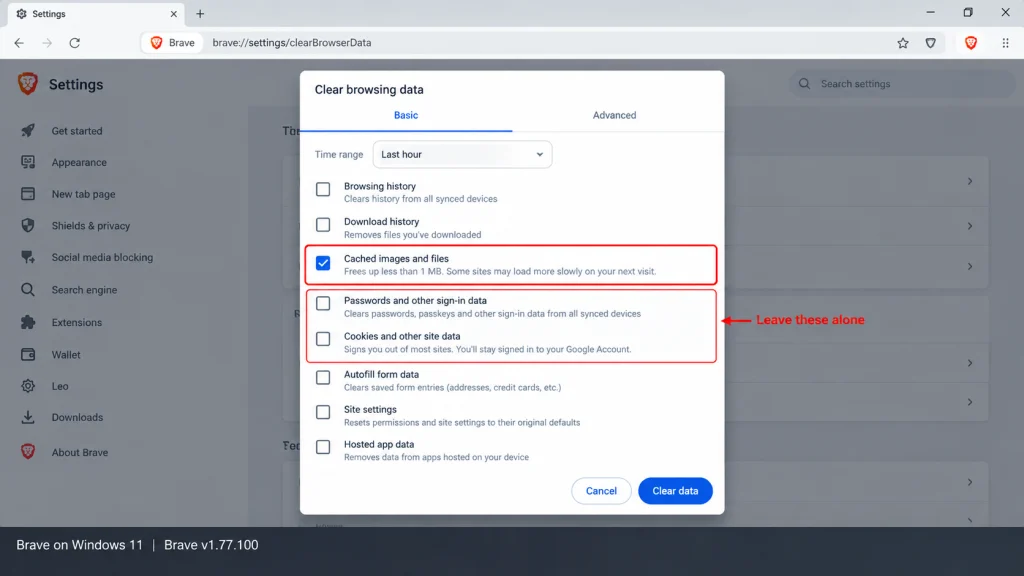
Open Brave, press Ctrl+Shift+Delete on Windows and Linux or Cmd+Shift+Delete on macOS, choose a time range, tick “Cached images and files,” and click Clear data. The whole process takes under ten seconds. The keyboard shortcut works on every desktop platform and skips the menu entirely.
Desktop, Step by Step
- Open the menu at the top right, then choose Settings.
- Go to Privacy and security, then Clear browsing data.
- Pick a time range. Use Last hour for a page that will not update, and All time only when troubleshooting something persistent.
- Tick Cached images and files. Leave everything else alone.
- Click Clear data.
That fourth step matters more than it looks. The same dialog offers Cookies, Passwords, and Autofill. Ticking Cookies logs you out of every site you use. Ticking Passwords deletes saved credentials permanently unless you have Brave Sync running. Plenty of people clear their cache once, tick everything, and spend the next hour resetting logins.
You can reach the dialog directly by typing brave://settings/clearBrowserData into the address bar.
Android and iOS
On Android, open the menu, tap Settings, then Privacy, then Clear browsing data, and select cached images and files. On iOS, the path runs through Settings, then Privacy, then Clear browsing data. Mobile menus shift between releases, so if the wording differs slightly, look for the privacy section.
Note that Tor windows are desktop only. Brave’s help documentation states that private windows with Tor are available only in the desktop browser. Mobile private windows are standard private browsing, which keeps nothing after you close them but does not route your traffic anywhere different.
Clearing Cache for One Site Only
This is the option most people never learn, and it is almost always the right one. You rarely want to dump your entire cache because a single page is stale.
Hold Shift and click reload for a hard refresh, which bypasses the cache for that page. For a deeper clear, open developer tools with F12, then right-click the reload button and choose Empty Cache and Hard Reload. That option only appears while dev tools are open, which is why so few people know it exists.
For a specific site’s stored data, click the Shields icon in the address bar, then look at site settings. You can clear cookies and storage for that one domain without touching anything else.
Does Clearing Cache Speed Up Brave?
No, and this is where most cache advice goes wrong. Clearing your cache makes browsing slower in the short term, because every site you visit next has to download files it previously read from your disk. The speed-up people report is usually a stale asset finally loading correctly, not the browser running faster.
Clearing cache is a troubleshooting step, not maintenance. It fixes stale content, broken layouts after a site update, and login loops caused by a corrupted stored file. It does not free up meaningful memory, it does not fix a slow computer, and doing it weekly out of habit costs you performance rather than adding it.
If Brave genuinely feels slow, look at extensions first, then tab count, then your available RAM. A cache measured in a few hundred megabytes is not what is slowing down a modern machine.
| Clear the cache when | Do not clear the cache when |
|---|---|
| A page shows old content after an update | Brave feels generally slow |
| A site’s layout breaks after a redesign | You are doing routine maintenance |
| A login loop will not resolve | You want to free up disk space |
| You are testing your own site’s changes | Someone told you to try it first |
Web developers are the exception, and they should use the hard reload rather than the full clear. Wiping everything to test one CSS file is a large hammer for a small nail. If you are debugging cached assets on a WordPress site, remember there are usually two caches involved, since a plugin like the ones covered in our WP Rocket and FlyingPress comparison serves pages from the server side before your browser ever sees them. Clearing the browser cache does nothing about that layer.
What the Cache Does Not Control
Cache is one of several stores that get confused with each other, and clearing the wrong one wastes time.
Cookies hold login sessions and preferences, and they are separate from cache. Site data covers localStorage and IndexedDB, which sites use for offline content. History is a list of pages you visited and holds no page content. Saved passwords sit in their own encrypted store.
DNS is the one that catches people most often. If a site fails to resolve at all, the problem sits below the browser and no amount of cache clearing touches it. Our guide to resetting your DNS server covers that path. Similarly, if you are seeing a certificate or connection warning rather than stale content, our walkthrough of fixing browser privacy errors applies to Brave too, since both browsers share the same Chromium engine and the same warning screens.
For tracking that survives a cache clear entirely, the mechanism is usually fingerprinting rather than storage, which we cover in how to turn off cross-site tracking.
Frequently Asked Questions
Does Brave use cache?
Yes. Brave caches images, stylesheets, scripts, and fonts the same way Chrome does, since both run on Chromium. The difference is that Brave partitions cache entries by the top-level site you are visiting, so a cached file loaded on one website cannot be used to recognize you on another.
How do I clear the cache in Brave?
Press Ctrl+Shift+Delete on Windows or Linux, or Cmd+Shift+Delete on macOS. Choose a time range, tick “Cached images and files,” and click Clear data. You can also reach the same dialog by typing brave://settings/clearBrowserData in the address bar.
Does clearing the cache delete my saved passwords?
Only if you tick the Passwords box. The Clear browsing data dialog offers several categories at once, and cached files and passwords are separate. Tick only “Cached images and files” and your saved logins stay untouched. Ticking Passwords deletes them permanently unless Brave Sync is enabled.
Will clearing the cache make Brave faster?
No. It makes browsing slower at first, because every site has to re-download files it previously read from disk. Clearing cache fixes stale content and broken layouts. It is a troubleshooting step, not maintenance, and doing it routinely costs performance rather than adding it.
Where does Brave store cache files?
On Windows, in %LOCALAPPDATA%\BraveSoftware\Brave-Browser\User Data\Default\Cache. On macOS, in ~/Library/Caches/BraveSoftware/Brave-Browser/Default/Cache. On Linux, in ~/.cache/BraveSoftware/Brave-Browser/Default/Cache. Each browser profile has its own folder. Deleting files manually while Brave is running can corrupt the cache index.
Can I limit how much cache Brave uses?
There is no size setting in the Brave interface. Chromium accepts a --disk-cache-size command line flag, which requires editing your shortcut or launch command and is rarely worth the effort. Cache size manages itself in practice, and partitioning means Brave’s folder can grow larger than Chrome’s for the same browsing.
How do I clear the cache for just one website?
Hold Shift and click reload for a hard refresh of that page. For a deeper clear, open developer tools with F12, then right-click the reload button and choose “Empty Cache and Hard Reload.” That menu option only appears while developer tools are open.
Does Brave still include HTTPS Everywhere?
No. Brave replaced the HTTPS Everywhere list with its own HTTPS by Default system. Brave’s engineering write-up explains the reason: the EFF’s list is no longer maintained, so a list-based approach was falling further behind. Any guide that still describes HTTPS Everywhere in Brave predates 2023.
Does private browsing in Brave use cache?
Private windows keep cached data in memory rather than writing it to disk, and it is discarded when the window closes. Private browsing hides your activity from other people using your device. It does not hide it from your network, your employer, or the sites you visit.
Is Brave’s cache more private than Chrome’s?
Structurally, yes. Partitioning cache and network state by top-level site removes a real tracking technique that works on browsers keeping a single shared cache. Whether that difference matters to you depends on your threat model, and it does not make Brave anonymous. It closes one specific vector.
What to Check First
Back to the CSS change that would not appear. Nine times out of ten the fix is a hard refresh, not a full cache wipe, and the remaining time it is a server-side cache the browser never touched. That order matters, because clearing everything is the step people reach for first and it is usually the least useful one.
So try Shift and reload. If that fails, use dev tools and Empty Cache and Hard Reload. If it still fails, check whether something upstream is serving the old file. Only then open the Clear browsing data dialog, and when you do, tick one box rather than all of them.
The wider question is worth sitting with. Brave partitions its cache to stop advertisers recognizing you through files you never chose to store. How many other things is your browser keeping that you have never looked at?