

This guide gives you the honest, up-to-date answer. You’ll learn exactly who you can block, who you can’t, the correct steps on both the website and the app, and what to do when the person you want to block isn’t in your contacts. Everything here is checked against PayPal’s official Help Center for 2026.
Quick answer: You can block another PayPal user, but only if they are already saved in your Contacts. Go to Send & Request → Contacts, pick the person, and choose Block this contact. A blocked person can no longer send you money, message you, or find you in the PayPal directory. If the person is a stranger who is not in your contacts, PayPal has no direct block for them — you’ll need the workarounds further down this guide.
Table of Contents
Key Takeaways
- You can only block someone who is already in your PayPal Contacts list.
- Blocking stops them from sending money, requesting money, and messaging you.
- PayPal does not tell the person they’ve been blocked.
- Your past transactions stay the same — blocking does not delete history.
- Strangers and scammers usually can’t be blocked directly; use the safer options in the “not a contact” section below.
- Business accounts get extra controls under Payments preferences → Block payments.
- You can unblock anyone at any time.
Can You Actually Block Someone on PayPal?
Yes — but with one important rule. PayPal only lets you block people who are in your Contacts list. If you have sent money to someone or saved them before, they’re a contact, and you can block them in about 30 seconds.
The problem most people run into is different. They want to stop a stranger — someone who keeps sending money requests out of the blue, or a possible scammer. That person is usually not a saved contact, so there is no “block” button for them. This is the part other guides often skip, and it’s the reason people feel stuck.
Here’s the simplest way to know which path to follow:
| Your situation | Can you block them? | What to do |
|---|---|---|
| They’re in your Contacts | ✅ Yes | Use the website or app steps below |
| A stranger sending requests | ⚠️ Not directly | See “If the person is not a contact” |
| A business or company | ❌ No | You can only block individual users |
| Payments from your website | ⚠️ Indirectly | Adjust settings or your site, not a user block |
If you’re new to how the platform handles payments in general, our guide on how PayPal works explains the basics first.
How to Block Someone on PayPal (Website)
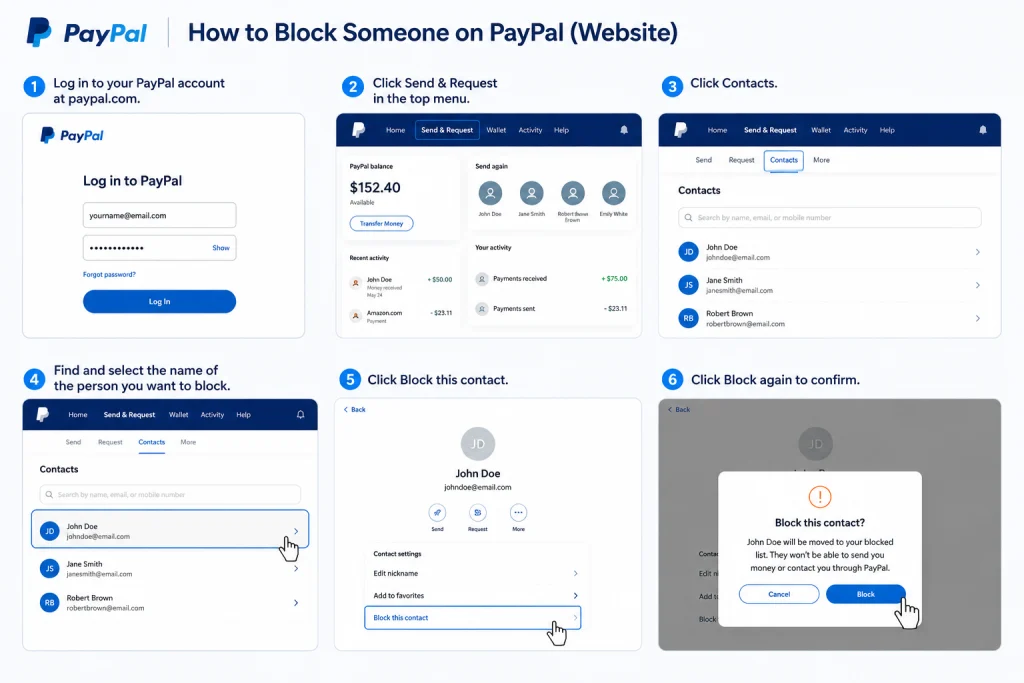
Use these steps on a computer or any web browser. This is the official method from PayPal.
- Log in to your PayPal account at paypal.com.
- Click Send & Request in the top menu.
- Click Contacts.
- Find and select the name of the person you want to block.
- Click Block this contact.
- Click Block again to confirm.
That’s it. The person moves to your blocked list right away. They won’t get a warning or a message telling them what happened.
Note: If you don’t see the person in Contacts, it means they were never saved as a contact. In that case, jump to the “not a contact” section — the website steps won’t work for them.
How to Block Someone on PayPal (Mobile App)
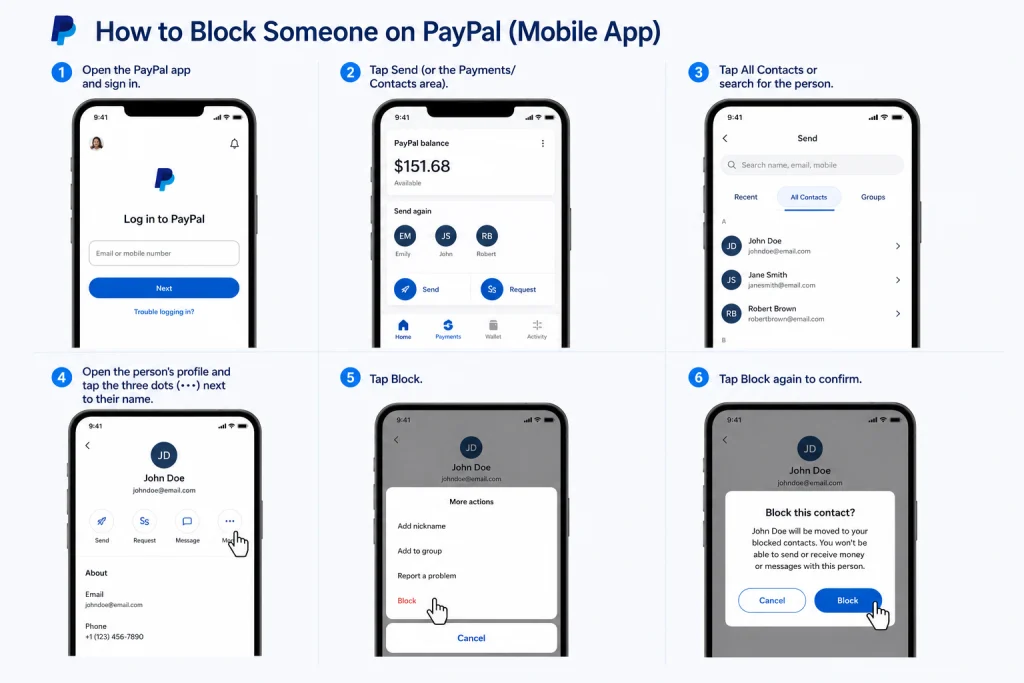
The steps in the PayPal app are slightly different from the website. PayPal updates its app often, so labels can change, but the flow is usually this:
- Open the PayPal app and sign in.
- Tap Send (or the Payments/Contacts area).
- Tap All Contacts or search for the person.
- Open the person’s profile and tap the three dots (⋯) next to their name.
- Tap Block.
- Tap Block again to confirm.
If a label looks different in your version, check PayPal’s own Help Center article for the current wording — the block option is always inside the contact’s profile menu.
If the Person Is Not a Contact (Strangers and Scammers)
This is the situation PayPal’s block feature does not solve on its own. If someone you’ve never dealt with keeps sending you money requests or messages, here are your real options, safest first.
Ignore the Requests
PayPal will never move money out of your account for a request unless you approve it. A request sitting in your inbox is harmless if you never tap “Pay.” Ignoring is often the smartest move for a one-off nuisance.
Change Your PayPal Email Address
If your email has landed on a spammer’s list and the requests keep coming, the cleanest long-term fix is to switch the email tied to your account and stop sharing the old one publicly.
Avoid the “Send 1 Cent” Trick
Some websites suggest sending the stranger a tiny payment (like $0.01) just to force their email into your Contacts so you can then block them. We don’t recommend this. It confirms to a scammer that your PayPal email is active and correct, which usually leads to more requests from a new address. You’ve helped them, not stopped them.
Report the User to PayPal
For anything that feels like fraud or harassment, report it. PayPal can review the account and take action on their side. If money is involved, our guide on what to do if you’re scammed on PayPal walks through refunds and buyer protection, and you can always reach a human through the PayPal customer service number.
How to Block Payments on a PayPal Business Account
Business accounts have stronger controls than personal accounts. Instead of blocking one person, you set rules for the kinds of payments you accept.
- Log in and open Account Settings (the gear icon).
- Go to Payments preferences (also shown as Payment receiving preferences).
- Find the Block payments section and click Update.
From here you can:
- Block payments in currencies you don’t hold.
- Block accidental or duplicate payments for the same invoice.
- Block payments funded by eChecks (which take days to clear).
- Control whether “anyone” can pay you or only invoiced customers.
You can also limit money requests to a set list of up to 20 email addresses, so only approved people can request from you. If you’re selling online, you may also find our notes on PayPal fees for selling on eBay useful.
How to Stop Payments From Your PayPal.me Link
Your PayPal.me link is public by design, so you can’t pick and choose who uses it. What you can do is turn the link off completely in your PayPal.me settings. Once it’s off, no one can use it to send you money, and you can turn it back on later if you need it.
What Happens After You Block Someone
Blocking changes a few things — and leaves others exactly as they were. Here’s the full picture:
- They can’t send you money through PayPal.
- They can’t request money from you.
- They can’t message you inside PayPal.
- They can’t find you in the PayPal directory.
- They are not notified — PayPal keeps the block quiet.
- Past transactions stay visible in your history for your records and any future disputes.
- They may still see basic public info you’ve shared, such as a display name.
How to Unblock Someone on PayPal
Changed your mind, or blocked the wrong person? Unblocking takes a few seconds.
- Click Send & Request.
- Click Manage Contacts.
- Click View blocked contacts at the bottom of the page.
- Click Unblock next to the person’s name.
Once unblocked, they can send money, request money, and message you again. Unblocking does not erase any past transaction history.
What If Someone Sends You Money You Didn’t Want?
Getting a random payment can feel like a win, but be careful. Spending unexpected money from an unknown sender can create problems if the payment was a mistake, a scam, or later reversed. In some cases, unusual activity can even get your own account reviewed or limited.
The safe move is to not spend it, and to contact PayPal so they can guide you on returning or handling the funds. If your money is being held or your account is limited, our guide on PayPal holding your money explains why it happens and what you can do.
Frequently Asked Questions
Does PayPal notify someone when you block them?
No. PayPal does not send any alert or message to the person you block. They only find out indirectly, if they try to send money or contact you and it no longer works.
Can you block someone on PayPal who is not a contact?
Not directly. PayPal’s block feature only works for people already in your Contacts list. For strangers, the practical options are to ignore their requests, change your email, or report them to PayPal.
Can you block a business or company on PayPal?
No. You can only block individual PayPal users. To stop payments tied to a business (like a subscription), cancel the agreement or cancel the payment instead.
Can a blocked person still see my PayPal profile?
They can still see basic public details, such as a display name you’ve made public. Blocking stops interactions and payments, not every piece of public information.
Will a blocked person be able to send me money later?
No — not while the block is active. If you unblock them, they can send and request money again right away.
Can I block someone from just requesting money?
On a personal account, blocking a contact stops both payments and requests. On a business account, you can limit requests to an approved email list under Payments preferences.
Does blocking stop payments through my PayPal.me link?
No. PayPal.me is public and can’t block individuals. To stop it, turn the PayPal.me link off entirely in its settings.
Conclusion
Blocking someone on PayPal is quick — if they’re already in your Contacts. Head to Send & Request → Contacts, pick the person, and confirm the block. They’ll lose the ability to pay you, request money, or message you, and they won’t even be told.
The real challenge is strangers who aren’t contacts. For them, the smartest steps are to ignore the requests, change your email if needed, avoid the risky “send a penny” trick, and report anything that looks like fraud. And if unwanted money ever lands in your account, don’t rush to spend it — check with PayPal first.