

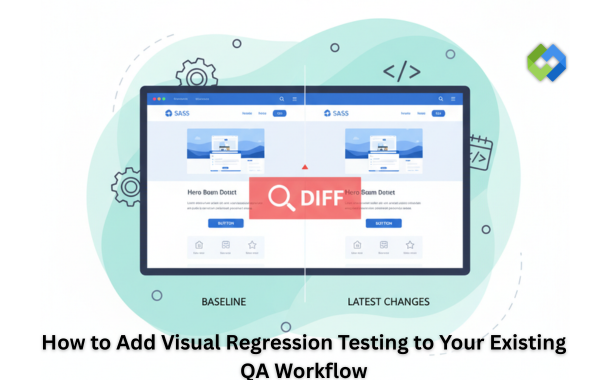
Visual regression testing compares screenshots of your application before and after code changes to spot unintended visual differences. This process fills a critical gap in your existing test suite. Functional tests verify that your code works, but they cannot detect CSS errors, layout shifts, or font problems that affect how users see your application.
You can add visual regression testing to your current QA workflow without starting from scratch. The process requires a few strategic steps to integrate new tools, adjust your test scripts, and train your team. This guide walks you through the practical steps to implement visual regression testing alongside your existing quality assurance processes.
Table of Contents
Integrating Visual Regression Testing in QA Workflow
Visual regression testing fits into your existing QA process through careful tool selection, proper setup, and smart automation. You need to understand the basics, choose the right tools, prepare your environment, and connect everything to your current systems.
Understanding Visual Regression Testing
Visual regression testing compares screenshots of your application before and after code changes. The process captures how your interface looks in a baseline state, then takes new screenshots after updates to spot differences. These differences might include layout shifts, color changes, font problems, or broken elements that functional tests miss.
The testing works through a simple cycle. First, you create baseline images of your application in its correct state. Then, after code changes, the system captures new images of the same pages or components. Software compares these images pixel by pixel or through more advanced algorithms. Any differences appear in a report for your team to review.
Your QA team reviews flagged changes to decide if they are intentional updates or actual bugs. This human review step matters because not all visual changes are problems. Some differences come from planned design updates, while others signal real issues that need fixes.
Selecting Visual Regression Testing Tools
Your choice of tools depends on your tech stack, team size, and budget, and getting that decision wrong early means painful migrations later when your test suite has already grown around the wrong foundation. The range of visual testing tools for QA teams now covers everything from open-source libraries like Percy and Applitools to built-in screenshot diffing inside Playwright and Cypress, so there is rarely a one-size answer. Smaller teams with straightforward component libraries often do well starting with a framework-native option before evaluating dedicated platforms as their needs grow. The more useful filter is how each tool handles dynamic content — ads, animations, and user-specific data that produce false positives and quietly erode confidence in the entire visual test suite.
Look for tools that support your programming languages and frameworks. The tool should work with your existing test frameworks like Selenium, Playwright, or Cypress. Integration capabilities matter because you want visual tests to run alongside your current functional tests.
Consider the tool’s comparison algorithms and reporting features. Some tools use simple pixel matching, while others apply AI to ignore acceptable differences like anti-aliasing or dynamic content. Better reporting makes it easier for your team to review results and make decisions quickly.
Budget and maintenance requirements also factor into your decision. Free tools save money upfront but may need more setup time and ongoing maintenance. Paid solutions cost more but often provide better documentation, support, and updates.
Preparation and Setup
Start by mapping out which parts of your application need visual testing. Focus on user-facing pages, components that change frequently, and areas where visual bugs have appeared before. You don’t need to test every single page at first.
Create a baseline image library for your selected pages and components. Take screenshots in multiple browsers and screen sizes if your application serves different devices. These baselines serve as your source of truth for future comparisons.
Set up your test environment to match production as closely as possible. Use consistent fonts, disable animations that create false positives, and control dynamic content like dates or user-generated text. Stability in your test environment reduces noise in your results.
Document your acceptance criteria for visual changes. Define thresholds for how much difference counts as a failure. Your team needs clear guidelines about what requires a fix versus what passes as acceptable variation.
Seamless Automation Integration
Add visual regression tests to your CI/CD pipeline so they run automatically with code commits or pull requests. Most modern testing tools connect directly with platforms like GitHub Actions, Jenkins, or GitLab CI. These integrations let visual checks happen without manual intervention.
Configure your pipeline to run visual tests at the right stage. Some teams run them after unit tests but before deployment, while others include them in nightly test suites. The timing depends on your release cycle and how quickly you need feedback.
Set up notifications so your team sees results immediately. Failed visual tests should block deployments or create alerts, depending on your quality standards. Quick feedback loops help developers fix issues before they reach production.
Monitor and adjust your visual testing strategy based on results. Track false positives and refine your thresholds or exclusion rules. Regular maintenance keeps your visual tests accurate and prevents alert fatigue in your team.
Optimizing and Maintaining Visual Regression Testing
Visual regression tests need regular care to stay accurate and useful. You must set up clear rules for what to test, keep your baseline images current, understand how to review differences, and update your tests as your application changes.
Best Practices for Test Coverage
Start by testing the most important pages and components that users interact with daily. Focus on your homepage, login screens, checkout flows, and navigation menus first.
Test different screen sizes and breakpoints to catch responsive design issues. Most teams cover mobile, tablet, and desktop views as a minimum. You should also test different browsers if your users access your application through multiple platforms.
Avoid testing every single pixel on every page. Instead, identify components that change frequently or have complex layouts. For example, you might test your header component once rather than on every single page where it appears.
Group similar tests together to reduce duplication. You can test a button component in different states (hover, active, disabled) without creating separate tests for every instance across your site.
Configuring Baseline Images
Baseline images serve as your reference point for all future comparisons. You need to capture these images in a controlled environment to avoid false positives.
Run your tests in Docker containers or dedicated testing environments to get consistent results. This approach removes variations caused by different fonts, rendering engines, or system settings on local machines.
Update baselines only after you verify that visual changes are intentional. Many teams require a code review or approval process before anyone can replace baseline images. This prevents accidental updates that might hide real bugs.
Store your baseline images in version control alongside your code. This practice lets you track changes over time and revert to previous versions if needed. Some teams use Git LFS for large image files to keep repository sizes manageable.
Interpreting Visual Differences
Visual regression tools highlight areas where new screenshots differ from baselines. However, not every difference indicates a problem.
Look at the context of each change first. A shift of one or two pixels might result from browser updates or font rendering differences. These minor variations often require you to adjust your threshold settings rather than fix actual bugs.
Pay attention to differences in interactive elements, spacing, and alignment. These changes often affect user experience more than color variations or subtle shadows. You should investigate any shifts in button positions, form layouts, or navigation elements.
Use diff images to understand what changed. Most tools provide three views: the baseline, the new screenshot, and a highlighted diff. The diff view shows exactly which pixels changed and helps you decide if the change matters.
Set appropriate thresholds for your tests. A threshold of 0.1% to 1% works well for most applications. You can adjust this value based on how strict you need your tests to be.
Continuous Monitoring and Updates
Review test results after every deployment to catch issues early. Set up notifications so your team knows immediately if tests fail. Many teams integrate visual regression checks into their CI/CD pipeline to block deployments that break the UI.
Schedule regular audits of your test suite to remove outdated tests and add coverage for new features. Applications evolve, and your tests must evolve with them. You might need to update tests quarterly or after major releases.
Track metrics like test execution time and failure rates. Long test runs slow down your deployment process, so you should optimize or reduce tests that take too long. High failure rates might indicate that your thresholds need adjustment or that your baselines are out of date.
Document your visual testing standards and share them with your team. Everyone should know how to update baselines, what threshold settings mean, and how to interpret test results. This shared knowledge keeps your testing process consistent as team members change.
Conclusion
Visual regression testing fits into your QA workflow without major disruptions. You can start small with a few critical pages and expand coverage as your team gains confidence with the tools and processes. The automated checks catch visual bugs before they reach production, which saves time and reduces the risk of user-facing issues.
Your team will benefit from faster feedback loops and more consistent UI quality across releases. The initial setup requires effort, but the long-term gains in efficiency and product quality make it worthwhile for modern development teams.