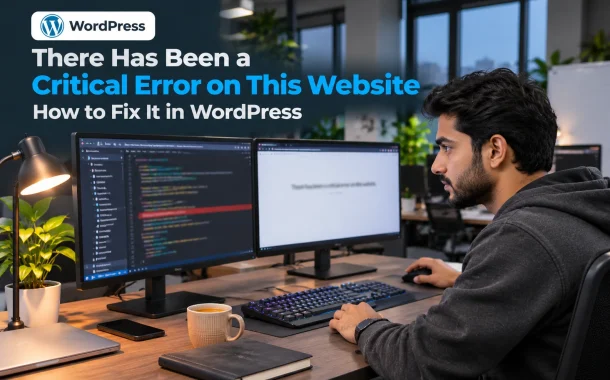
If you’re seeing a critical error on this website message in WordPress, your content is almost always safe. WordPress shows this screen when a PHP fatal error stops a page from loading, usually because of a plugin, theme, PHP version or memory problem. Below we explain what the message means, how to use recovery mode and the WordPress error log, and the exact fixes we use for plugin conflicts, Elementor errors, PHP updates and errors that only appear when editing a page or opening wp-admin.
Quick answer: To fix “There has been a critical error on this website” in WordPress, check the admin email for a recovery mode link and use it to deactivate the faulty plugin or theme. If there’s no email, turn on WP_DEBUG_LOG in wp-config.php to find the error, then rename the plugins folder or the active theme folder by FTP or File Manager. Also check your PHP version and memory limit.
Table of Contents
What Does “There Has Been a Critical Error on This Website” Mean?
The message means WordPress hit a PHP fatal error and stopped loading the page to protect your site. Since WordPress 5.2, the fatal error protection feature shows this friendly message instead of a blank white screen. The error itself is hidden from visitors, but WordPress records it and usually emails the site admin.
Common Causes
| Cause | How it happens |
|---|---|
| Plugin conflict or bug | An update or new plugin calls code that breaks |
| Theme error | A theme update or custom code in functions.php |
| PHP version change | Old code doesn’t work on newer PHP |
| PHP memory limit | A heavy page or plugin runs out of memory |
| Corrupted core files | A failed update or bad upload |
| Page builder mismatch | Elementor and Elementor Pro versions out of sync |
| Database or server issue | Rare, usually alongside other errors |
Is Your Site Hacked?
Usually not. The critical error is almost always caused by code compatibility, not an attack. If the error appeared without any update or change, and you notice unknown files, admin users or redirects, then scan for malware as well.
How to Fix a Critical Error on This Website With Recovery Mode
Recovery mode is the fastest fix when it’s available. When a fatal error happens, WordPress emails the admin address with the subject line about your site experiencing a technical issue. The email names the plugin or theme that caused the error and includes a special link that logs you into a safe version of the dashboard.
Steps to Use Recovery Mode
- Open the email sent to your site’s admin address and check the spam folder too.
- Click the recovery mode link and log in.
- WordPress pauses the faulty plugin or theme and shows a notice.
- Go to Plugins and deactivate or update the plugin named in the email.
- Click Exit Recovery Mode and test the site.
No Recovery Email?
The email may not arrive if your site can’t send mail, the admin email is old or the error blocks mail functions. WordPress explained the feature in its fatal error recovery mode announcement. If you didn’t get an email, use the error log method below.
Find the Cause in the WordPress Error Log
The WordPress error log tells you exactly which file and line caused the critical error. Turn on debug logging in wp-config.php, reload the broken page and read the debug.log file. The log names the plugin or theme folder involved, so you can fix the right thing instead of guessing.
Turn On the Debug Log
Open wp-config.php in your host’s File Manager or by FTP and add these lines above the line that says “That’s all, stop editing”:
define( 'WP_DEBUG', true );
define( 'WP_DEBUG_LOG', true );
define( 'WP_DEBUG_DISPLAY', false );
Reload the page, then open wp-content/debug.log. Look for lines starting with “PHP Fatal error”. The WordPress debugging documentation explains each setting.
How to Read the Error
| What the log shows | What it means |
|---|---|
| A path with /wp-content/plugins/plugin-name/ | That plugin caused the error |
| A path with /wp-content/themes/theme-name/ | Your theme or child theme caused it |
| “Allowed memory size exhausted” | PHP memory limit is too low |
| “Call to undefined function” | Missing plugin, PHP extension or version mismatch |
| A path in /wp-includes/ or /wp-admin/ | Core files may be damaged |
Turn WP_DEBUG back to false when you’re done, and delete debug.log so it isn’t publicly readable.
Fix a Critical Error on This Website Caused by Plugins or Themes
Plugins cause most critical errors we see. If you can’t reach wp-admin, you can disable plugins without logging in by renaming folders. WordPress deactivates any plugin it can’t find, so renaming is safe and doesn’t delete settings. The same trick works for themes.
Disable All Plugins by FTP or File Manager
- Open your host’s File Manager or connect by FTP.
- Go to wp-content.
- Rename the plugins folder to plugins-off.
- Reload your site. If it works, a plugin was the cause.
- Rename the folder back to plugins, then rename each plugin folder one at a time to find the culprit.
Switch to a Default Theme
Rename your active theme’s folder in wp-content/themes. WordPress falls back to a default theme like Twenty Twenty-Five if one is installed. If the site loads, the error is in your theme or in custom code added to functions.php. Undo the last code change or reinstall a clean copy of the theme.
Critical Error After a PHP Update
A critical error after a PHP update usually means a plugin or theme isn’t compatible with the new PHP version. Hosts move sites to newer PHP versions because old ones stop getting security updates. Fix the outdated code rather than staying on an unsupported version for long.
What to Do
| Step | Action |
|---|---|
| 1 | Switch back to the previous PHP version in your hosting panel to restore the site |
| 2 | Check the error log to find the incompatible plugin or theme |
| 3 | Update that plugin or theme, or replace it if it’s abandoned |
| 4 | Test on a staging site with the new PHP version |
| 5 | Switch PHP forward again once everything works |
Check Supported PHP Versions
The PHP supported versions page shows which versions still get security fixes. Our guide on how to prepare your site for WordPress PHP 8 covers compatibility checks before you upgrade.
Elementor Critical Error Fixes
“There has been a critical error on this website” in Elementor usually comes from a version mismatch between Elementor and Elementor Pro, a third-party Elementor add-on or low memory. It often appears right after an Elementor update or only when you open the Elementor editor.
Elementor Checklist
- Make sure Elementor and Elementor Pro are both updated to compatible versions.
- Deactivate Elementor add-on plugins one at a time.
- Turn on Elementor Safe Mode from the editor’s loading screen if it offers it.
- Increase the PHP memory limit to at least 256M.
- Roll back Elementor from Elementor, then Tools, then Version Control if the latest version caused the error.
Critical Error When Editing a Page
If the error only appears when editing, the problem is usually in the editor, a page builder or a plugin that loads in the editor. Check the error log after opening the editor, raise memory and test with plugins disabled. A single corrupted page can also cause it, so try restoring a previous revision.
Fix Memory Limits and Corrupted Core Files
Memory and corrupted files cause fewer critical errors than plugins, but they’re easy to fix. If the error log says “Allowed memory size exhausted,” raise the memory limit. If the log points to wp-admin or wp-includes files, replace WordPress core files with fresh copies.
Increase the PHP Memory Limit
Add this line to wp-config.php:
define( 'WP_MEMORY_LIMIT', '256M' );If your host caps memory lower, ask them to raise it or upgrade your plan. Reliable WordPress hosting for agencies usually allows higher limits.
Reinstall WordPress Core Files
Download WordPress from wordpress.org, then upload fresh wp-admin and wp-includes folders over the old ones. Don’t overwrite wp-content or wp-config.php, which hold your content and settings. If nothing works, restore your latest backup.
Critical Error in WordPress Admin
When the critical error appears in wp-admin but the front end works, the cause is usually a plugin that only loads in the dashboard, such as an SEO, security or backup plugin. You can still use recovery mode, the debug log and the folder rename method to fix it.
Admin-Only Error Steps
- Check the debug log after loading the dashboard.
- Rename the plugin folder named in the log.
- Clear any server or plugin cache.
- Log in again and reactivate plugins one by one.
Related WordPress Errors
If you see a blank page instead, read our guide on the WordPress white screen of death. For server errors, see 502 Bad Gateway fixes.
FAQs
Here are answers to common questions about the WordPress critical error.
What does “There has been a critical error on this website” mean?
It means WordPress hit a PHP fatal error and stopped loading the page. Since WordPress 5.2, this message replaces the old blank white screen. The cause is usually a plugin, theme, PHP version or memory problem. Your posts and pages are almost always safe in the database, and you can usually fix the error with recovery mode or the debug log.
How do I fix a critical error in WordPress without admin access?
Use your host’s File Manager or FTP. Rename the wp-content/plugins folder to disable all plugins, or rename your active theme folder to force a default theme. Turn on WP_DEBUG_LOG in wp-config.php and read wp-content/debug.log to find the exact file causing the error. Then fix, update or remove that plugin or theme. This method works on any host and needs no plugin.
Where is the WordPress error log?
When you add WP_DEBUG and WP_DEBUG_LOG to wp-config.php, WordPress writes errors to wp-content/debug.log. Your host may also keep PHP error logs in the hosting control panel, often under logs or error logs. Read the latest “PHP Fatal error” line, which names the plugin or theme folder that caused the critical error. Download it before reading if the file is large.
Why did I get a critical error after a PHP update?
A plugin or theme on your site uses code that isn’t compatible with the new PHP version. Switch back to the previous PHP version in your hosting panel to restore the site quickly, then find the incompatible plugin in the error log, update or replace it and test on staging before switching PHP forward again. Most hosts let you switch PHP versions in a few clicks.
How do I fix the Elementor critical error?
Make sure Elementor and Elementor Pro are on compatible versions, deactivate Elementor add-ons one at a time and raise the PHP memory limit to at least 256M. If the error started after an update, roll back Elementor from its Version Control tool. Check the debug log to confirm which plugin file triggered the error. Elementor’s support team can also review the log.
Will I lose my content because of a critical error?
Almost never. Your posts, pages and settings are stored in the database, which a critical error doesn’t delete. The error stops PHP code from running, so the site can’t display the content until you fix the cause. Avoid deleting folders while troubleshooting. Rename them instead, and take a backup before making bigger changes. Your media files in wp-content/uploads are also untouched.
Why didn’t I get the WordPress recovery mode email?
The email goes to the admin email in Settings, then General. It may be missing because that address is outdated, your server can’t send email or the message went to spam. Some fatal errors also stop the email from sending. Set up an SMTP plugin once the site works, so future recovery emails arrive reliably. Recovery links expire, so use them promptly.
How do I stop critical errors from happening again?
Keep plugins, themes and WordPress updated, remove abandoned plugins and test major updates on a staging site first. Take daily backups, use a host with current PHP versions and enough memory and avoid editing functions.php directly on a live site. Turn on automatic plugin updates only for plugins with a good update history. A staging site catches most problems before visitors see them.
Can a critical error be caused by hacking?
It’s possible but uncommon. Most critical errors come from updates and compatibility problems. If the error appeared without any changes, or you notice unknown admin users, strange files or redirects, run a malware scan and check your server logs. Change passwords, update everything and restore a clean backup if malicious code is found. A security plugin can help with ongoing monitoring.
Conclusion
A critical error on this website message looks alarming, but it’s usually a quick fix. Start with the recovery mode email, then use the WordPress error log to find the exact plugin, theme or file causing the problem. Rename plugin or theme folders if you can’t reach the dashboard, roll back PHP after a bad update, raise the memory limit and reinstall core files if they’re damaged.
Our client’s store was back online in 12 minutes because the error log pointed straight at one outdated plugin. Keep backups, test updates on staging and stay on a supported PHP version to avoid the next one. If you’re stuck after trying these steps, a WordPress developer can read the log and fix the code for you. Note what caused each error and how you fixed it, so the next fix takes minutes instead of hours. Which of these fixes brought your site back?