Knowing how to add a banner in WordPress depends on what you mean by “banner.” It could be a large hero image at the top of a page, a header banner across every page, a thin announcement bar with a sale or notice, a rotating slider or an ad banner in a sidebar. WordPress handles each one differently, and block themes and classic themes put the settings in different places. Below you’ll find six methods, from a no-plugin Cover block to a free announcement bar plugin and a small code snippet, plus banner sizes, mobile tips and fixes for the most common problems.
Quick answer: To add a banner in WordPress, edit the page and insert a Cover block with your image, text and button. For a site-wide banner, open Appearance, then Editor, edit the Header template part and add a Cover or Group block. For a dismissible top announcement bar, install a free plugin such as Simple Banner. Classic themes may also offer a header image under Appearance, then Customize.
Table of Contents
What Counts as a Banner in WordPress?
A WordPress banner is any wide strip of content that grabs attention, usually at the top of a page. The main types are hero banners on a single page, header banners across the whole site, announcement or notification bars, rotating banners and advertising banners in sidebars or between posts.
Banner Types at a Glance
| Banner type | Where it appears | Best method |
|---|---|---|
| Hero banner | Top of one page | Cover block |
| Header banner | Every page | Site Editor header or Customizer |
| Announcement bar | Thin bar above the header | Plugin or Site Editor |
| Rotating banner | Top of homepage | Slider block or plugin |
| Ad banner | Sidebar or inside posts | Image block, widget or ad plugin |
Block Themes vs Classic Themes
Block themes, such as Twenty Twenty-Five, use the Site Editor under Appearance, then Editor. Classic themes use Appearance, then Customize and Widgets. Check which one you have before you start.
Method 1: How to Add a Banner in WordPress With the Cover Block
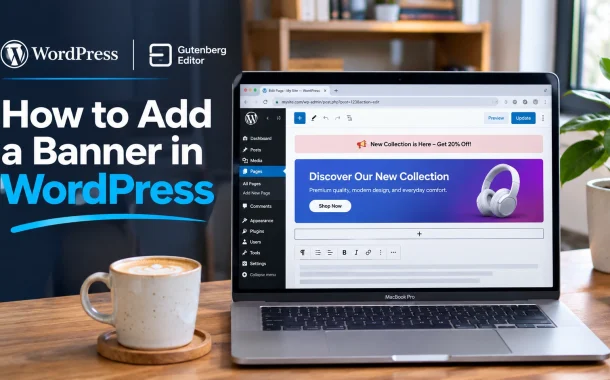
The Cover block is the fastest way to add a banner in WordPress without a plugin. It places text, buttons and a dark overlay on top of an image, video or solid color, and it works on any page or post in the block editor.
Steps
- Open the page in the editor and click the plus (+) icon at the top.
- Search for “Cover” and insert the block.
- Upload or choose an image, or pick a solid color.
- Type your headline, then add a Buttons block inside the cover.
- In the block settings, set the minimum height, overlay opacity and focal point.
- Set the width to “Full width” in the toolbar for an edge-to-edge banner.
- Click Update.
The WordPress Cover block documentation lists every setting, including video backgrounds and duotone filters.
Tips for a Better Cover Banner
Keep the headline short, use an overlay so white text stays readable and set a focal point so faces don’t get cropped on phones. Save the design as a reusable pattern if you want the same banner on several pages. Our guide on how to edit a page in WordPress covers the editor basics.
Method 2: Add a Banner in WordPress to Every Page With the Site Editor
To add a banner to the top of every page in a block theme, edit the Header template part in the Site Editor. Anything you place there appears site-wide, which makes it ideal for a WordPress top banner or an announcement bar without a plugin.
Steps
- Go to Appearance, then Editor.
- Open Patterns, then Template Parts, and select Header.
- Click above the site title and insert a Group block.
- Add a Paragraph with your message and set a background color.
- Save. The banner now shows on every page that uses this header.
Announcement Bar Without a Plugin
The Group block method above is a simple WordPress announcement banner without a plugin. It can’t be dismissed by visitors or scheduled, so remember to remove it when the offer ends.
Method 3: Add a Header Banner in a Classic Theme
Classic themes often include a header image option in the Customizer. It gives you a site-wide banner image without touching code, although the size, cropping and layout depend on the theme. Older themes such as Twenty Seventeen and many commercial themes still use this option.
Steps
- Go to Appearance, then Customize.
- Open Header Image or Header Media.
- Upload your image and crop it to the size the theme recommends.
- Click Publish.
Using Widgets
Some classic themes also have a header or “above content” widget area. Add an Image or Custom HTML widget there for a banner, or use a sidebar widget for an ad banner.
Method 4: Add a Banner in WordPress With a Free Announcement Plugin
A plugin is the best option when you need a dismissible bar, scheduling or different banners on different pages. Free plugins such as Simple Banner add a bar to the top or bottom of your site with a few settings, and visitors can close it.
How to Use Simple Banner in WordPress
- Go to Plugins, then Add New, search for “Simple Banner” and install it.
- Activate it and open its settings page.
- Enter your banner text, choose colors and set the position.
- Optionally add a close button and choose which pages show it.
- Save the settings and check your site.
Other Banner Plugin Types
Other free WordPress banner plugins focus on popups, sticky bars, ad rotation or sliders. Pick one that is actively maintained, has recent updates and doesn’t load heavy scripts on every page, because extra plugins slow sites down.
Method 5: Add a Rotating Banner in WordPress
A rotating banner, or slider, shows several slides in turn, usually at the top of a homepage. WordPress core has no slider block, so you need a slider plugin, a page builder widget such as an Elementor slider or a block library that adds a carousel block.
Steps for a Rotating Banner
- Install a slider or block library plugin that includes a carousel or slider block.
- Add the slider block to your page.
- Upload two to four slides, each with a short headline and one button.
- Set autoplay timing and turn on arrows or dots for navigation.
Should You Use a Slider?
Sliders look busy and often hide important messages after the first slide. For most sites, one strong static banner works better. Use a slider only when each slide is useful on its own.
Method 6: Add a Banner With Code
Developers can add a site-wide banner without a plugin using the wp_body_open hook, which WordPress added in version 5.2 and most modern themes support. Add the snippet to a child theme’s functions.php file or a code snippets plugin, never directly to a parent theme, because updates overwrite it.
<?php
add_action( 'wp_body_open', function () {
    echo '<div class="site-banner">Free shipping on orders over $50 this week.</div>';
} );
Then style it in Appearance, then Customize, then Additional CSS:
.site-banner { background: #1e3a8a; color: #fff; text-align: center; padding: 10px; }When Code Makes Sense
Code is best for developers who want full control and no extra plugin. If your banner needs to change often, a block or plugin is easier for non-technical staff. Our guide to WordPress theme development explains child themes and hooks.
Banner Size, Design and Mobile Tips
The right banner size depends on your theme and where the banner appears. Use an image at least as wide as your content area, keep important content in the center so it isn’t cropped on phones and compress files so the banner doesn’t slow the page down.
Recommended Sizes
- Full-width hero banners usually work well at around 1920 pixels wide, with height set by the block rather than the image.
- Header images in classic themes follow the size shown in the Customizer.
- For plugin developers, the WordPress.org plugin assets guide sets the plugin page banner at 772×250 pixels, with a 1544×500 version for high-resolution screens.
Design Tips
Use one clear message, one button and high contrast. Export images as WebP to keep them small, as our comparison of WebP vs AVIF vs JPEG explains. Check the banner on a phone before publishing.
Fixing Common Banner Problems
If the banner is cut off on mobile, adjust the focal point or use a separate mobile image. If it doesn’t stretch full width, check the block’s alignment and your theme’s layout settings. If a plugin bar overlaps the header, change its position to “static” in the plugin settings.
FAQs
Here are answers to common questions about adding banners in WordPress.
How do I add a banner to my WordPress website?
Edit the page, click the plus icon and insert a Cover block. Add your image, headline and button, then set the width to full and save. For a banner on every page, add it to the Header template part in Appearance, then Editor, or use your theme’s header image option in the Customizer. A free plugin works best for dismissible announcement bars.
How do I add an announcement banner on WordPress?
Use a free plugin such as Simple Banner, which adds a bar to the top of your site with your own text, colors and a close button. Without a plugin, open Appearance, then Editor, edit the Header template part and add a Group block with a paragraph and background color. That shows the same message on every page until you remove it or replace the text.
Can I add a WordPress banner without a plugin?
Yes. Use the Cover block for a page banner, the Site Editor’s Header template part for a site-wide banner or your classic theme’s header image setting. Developers can also add a small PHP snippet with the wp_body_open hook in a child theme. These options avoid extra plugins, though they lack features like scheduling or a close button for visitors.
How do I add a banner to the top of a page in WordPress?
Insert a Cover block as the first block on the page and set it to full width. If your theme adds space above the content, choose a page template with no title or a full-width layout. For a banner above the header on every page, edit the Header template part in the Site Editor and add your block above the site title.
How do I add a rotating banner in WordPress?
WordPress core doesn’t include a slider block, so install a slider plugin or a block library that adds a carousel block. Add the slider to your page, upload two to four slides with short headlines and buttons and set autoplay timing. Keep slides few and simple, because many visitors only see the first one before scrolling past the slider to your content.
What is the best free WordPress banner plugin?
For simple top or bottom bars, Simple Banner is a popular free option with a close button, colors and page targeting. Other free plugins add popups, sticky bars or ad rotation. Choose one that was updated recently, works with your WordPress version, has good reviews and loads lightly, because heavy banner plugins can slow down every page on your site.
What size should a WordPress banner be?
For full-width hero banners, an image around 1920 pixels wide works for most screens, and the Cover block controls the height. Classic theme header images use the size the Customizer recommends. Plugin developers use 772×250 pixels, plus 1544×500 for high-resolution screens, on WordPress.org plugin pages. Always compress the image, export it as WebP and keep key text away from the edges.
Why is my WordPress banner cut off on mobile?
Phones crop wide images to fit narrow screens. Set a focal point in the Cover block so the important part stays visible, keep text as real text instead of part of the image and avoid fixed heights that are too tall. Some themes and plugins let you upload a separate mobile image, which gives you the most control over what phone visitors see.
Conclusion
Learning how to add a banner in WordPress comes down to picking the right tool for the job. The Cover block handles page banners in minutes, the Site Editor’s header adds a banner to the top of every page, classic themes offer a header image in the Customizer and a free plugin like Simple Banner gives you a dismissible announcement bar. Developers can use the wp_body_open hook for a lightweight code-only option.
Whatever you choose, keep one clear message, use a compressed image and check the banner on a phone before you publish. Our bakery client now updates her own holiday notices in the header template part, with no plugin and no developer needed. If you need a custom banner design or a theme that makes this easier, our WordPress development team can help. Which kind of banner does your site need first: a hero image, a header banner or an announcement bar?