

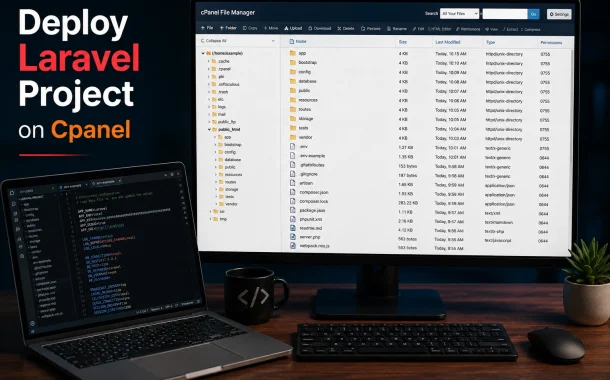
That is the difference between a deployment that runs and a deployment that is safe to leave running. This guide covers how to deploy a Laravel project on cPanel with the application code outside the web root, with real code for the parts that need it, and with the database section that most guides skip. It also covers what shared hosting genuinely cannot do, so you find out now rather than the week your queue jobs stop firing.
To deploy a Laravel project on cPanel, upload your app outside public_html, then point the domain’s document root at the project’s public folder. On a primary domain where you cannot change the document root, copy public/index.php and .htaccess into public_html and edit the two require paths. Never leave APP_DEBUG on.
Table of Contents
Check Your Versions Before You Upload
Laravel 13 requires PHP 8.3 or newer. Laravel 12 requires PHP 8.2. If your cPanel host does not offer at least PHP 8.2, the deployment fails at composer install and no amount of file arranging will fix it. Check this first, because it decides whether the rest of the guide is worth your time.
| Laravel version | Minimum PHP | Status as of August 2026 |
|---|---|---|
| Laravel 13 | PHP 8.3 | Current. Released 17 March 2026. Bug fixes to Q3 2027, security to Q1 2028 |
| Laravel 12 | PHP 8.2 | Bug fixes ended 13 August 2026. Security fixes to 24 February 2027 |
| Laravel 11 | PHP 8.2 | Security support ended 12 March 2026. Upgrade path needed now |
| Laravel 10 | PHP 8.1 | End of life |
Versions and dates verified against Laravel release documentation and framework news, August 2026.
Two things fall out of that table. If you are deploying Laravel 11 or 10, you are deploying an unsupported framework, and the deployment is the smaller problem. And if your host caps out at PHP 8.1, that is a hosting decision rather than a Laravel one. The same reasoning applies across the PHP ecosystem, which our guide on choosing a PHP version covers in more detail.
What shared cPanel hosting cannot do
Nobody tells you this before the deployment, and it is better to know now.
- Queue workers cannot run as daemons.
php artisan queue:workis a persistent process, and shared hosts kill long-running processes. The workaround is a cron job runningqueue:work --stop-when-empty, which processes jobs within a minute but is not Horizon. - The scheduler needs a per-minute cron. Many shared hosts allow cron only every 5 or 15 minutes. Laravel’s scheduler assumes every minute. Check your host’s policy before designing anything time-sensitive.
- No Redis, often no Supervisor, and limited memory. Sessions and cache fall back to file or database drivers.
If your application depends on queues, websockets, or broadcasting, cPanel shared hosting is the wrong target and a VPS is the honest answer. For a straightforward CRUD application or a marketing-facing Laravel site, it is fine.
Step 1: Prepare the Project Locally
Build the production artifact on your machine, not on the server. Shared hosts frequently have low memory limits and no Composer, so running composer install on the server is where deployments stall. Install dependencies locally with production flags, then upload the result.
bash
# Install production dependencies only, with an optimized autoloader
composer install --optimize-autoloader --no-dev

# Build front-end assets if your project uses them
npm run build
The --no-dev flag matters. Without it you ship PHPUnit, Faker, and the debug packages to production, which is both wasted space and extra attack surface. If you have not set Composer up locally, our guide to installing Composer for Laravel walks through it.
Do not upload node_modules. It is only needed to build assets, not to serve them.
Prepare the .env file
Create your production .env separately rather than editing your local one, because a stray local value is how staging credentials end up on a live site.
APP_NAME=YourApp
APP_ENV=production
APP_KEY=base64:your-existing-key-here
APP_DEBUG=false
APP_URL=https://yourdomain.com

DB_CONNECTION=mysql
DB_HOST=127.0.0.1
DB_PORT=3306
DB_DATABASE=cpaneluser_dbname
DB_USERNAME=cpaneluser_dbuser
DB_PASSWORD=your-database-password
Three details people get wrong here. APP_ENV must be production, not local. APP_DEBUG must be false, for reasons covered further down. And on cPanel your database name and username are prefixed with your cPanel account name, so a database you named shop becomes something like webzeto_shop. Copy the exact strings from cPanel rather than typing what you intended to call them.
Do not run php artisan config:cache locally. Cache configuration on the server after the .env is in place, or you will bake your local settings into the build.
Step 2: Choose Your Deployment Structure
This is the step that determines whether your deployment is secure, and there are two workable structures. The right one depends on whether cPanel will let you set the document root for your domain, which i n turn depends on whether it is an addon domain, a subdomain, or the primary domain on the account.
Method A: Point the document root at public (preferred)
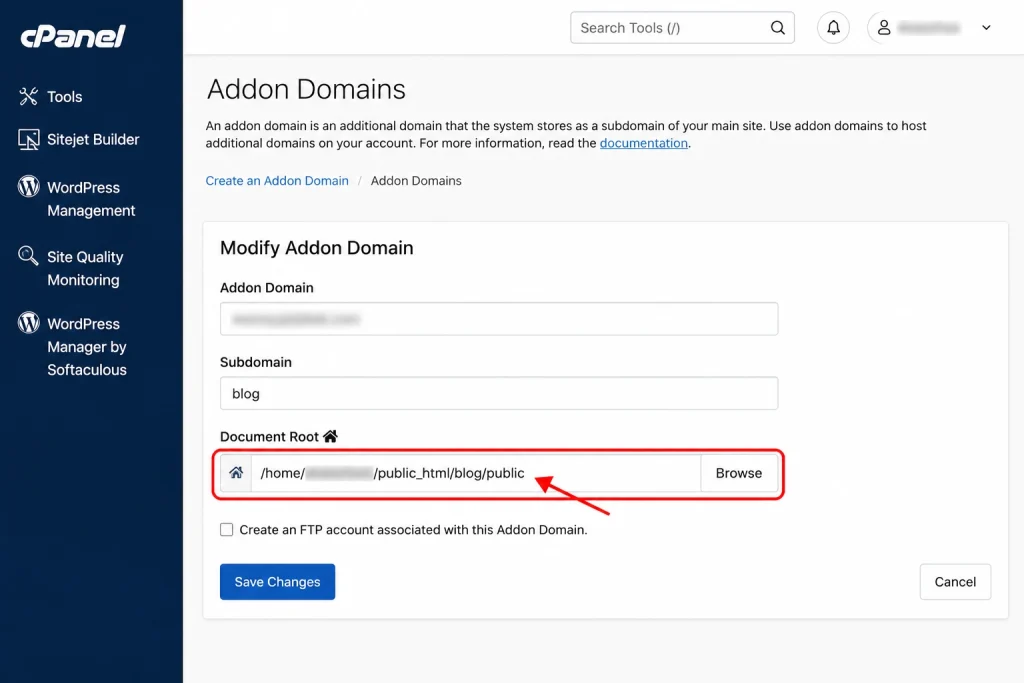
If you are deploying to an addon domain or a subdomain, cPanel lets you set the document root directly. This is the clean method. No file moving, no editing framework files, nothing to redo on the next deployment.
Upload the project to a directory outside the web root, for example /home/youruser/apps/myproject, then in cPanel under Domains, set:
Document Root: /home/youruser/apps/myproject/publicThat is the whole configuration. Your .env, app/, config/, vendor/, and storage/ all sit outside anything Apache will serve. Push toward this method whenever the hosting setup allows it.
Method B: Bridge files in public_html (primary domain)
On most shared hosts you cannot change the document root of the primary domain. Here the reliable pattern is to keep the application outside public_html and place only two bridge files inside it.
Upload the project to /home/youruser/myproject, then copy myproject/public/index.php and myproject/public/.htaccess into public_html, along with your compiled assets. Then edit the two require paths near the top of the copied index.php:
php
// Original paths in Laravel's public/index.php
require __DIR__.'/../vendor/autoload.php';
$app = require_once __DIR__.'/../bootstrap/app.php';

// Edited for a project sitting alongside public_html
require __DIR__.'/../myproject/vendor/autoload.php';
$app = require_once __DIR__.'/../myproject/bootstrap/app.php';
Adjust the relative depth to match your actual directory layout. The principle is that index.php lives in the web root and everything it loads does not.
What not to do: unzip the entire Laravel project into public_html and rely on a rewrite rule to hide it. That leaves .env, storage/logs, and your source code reachable over HTTP. Rewrite rules can be bypassed, misconfigured, or wiped by a host update. Directory structure cannot.
Step 3: Upload the Files
Compress the project locally, upload the archive through cPanel’s File Manager, and extract it in place. This is far faster than transferring thousands of small vendor/ files individually over FTP, which is where most upload timeouts happen.
If you prefer FTP, use an SFTP-capable client such as FileZilla and make sure hidden files are visible, or .env and .htaccess will be silently skipped. In FileZilla that setting is under Server, then Force showing hidden files.
Whichever route you take, verify after extraction that .env is present and that it is not inside public_html.
Step 4: Create the Database in cPanel
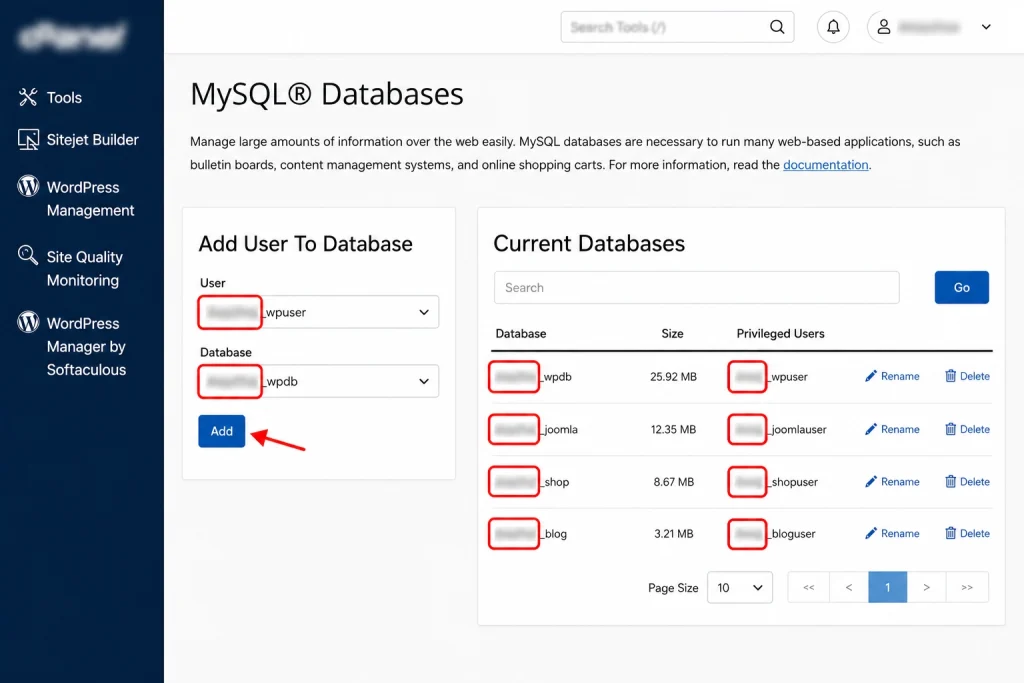
Create the database and user in cPanel first, then point .env at them. Laravel will not create a database for you, and a wrong prefix here produces the SQLSTATE[HY000] [1045] Access denied error that accounts for a large share of failed first deployments.
In cPanel, open MySQL Databases and work through it in order:
- Create the database. Enter a name and click Create Database. cPanel prepends your account name, so
shopbecomesyouruser_shop. - Create a user. Under Add New User, set a username and a generated password. This is also prefixed:
youruser_shopadmin. Copy the password somewhere before you leave the page. - Add the user to the database. Under Add User To Database, select both, then grant ALL PRIVILEGES on the next screen. Skipping this step is why a correct username and password still fails to connect.
- Copy the exact strings into
.env. Full prefixed database name, full prefixed username, andDB_HOST=127.0.0.1for almost all shared hosting.
Then run your migrations from the terminal:
bash
php artisan migrate --forceThe --force flag is required because Laravel refuses to run migrations in a production environment without it. That confirmation prompt is a safety feature, so read what you are about to run before you bypass it.
If you need to move existing data across, export from your local database with phpMyAdmin or mysqldump, then import through cPanel’s phpMyAdmin rather than through a migration.
Step 5: Configure PHP and Extensions
Set the PHP version in cPanel under Select PHP Version, then enable the extensions Laravel needs. Choose PHP 8.3 or 8.4 for a current Laravel project. Do not select PHP 8.0 or 8.1, both of which are past end of life and below Laravel 13’s minimum.
Laravel requires these extensions:
ctype,cURL,DOM,fileinfo,filter,hashmbstring,openssl,PCRE,PDO,pdo_mysqlsession,tokenizer,XML
Most are enabled by default on cPanel. The ones commonly missing are fileinfo, intl, and occasionally zip.
While you are in that area, open MultiPHP INI Editor and check memory_limit (256M is a safe starting point), upload_max_filesize, and post_max_size. The defaults on budget hosting are frequently too low for Composer operations or file uploads.
Step 6: Set Permissions Correctly
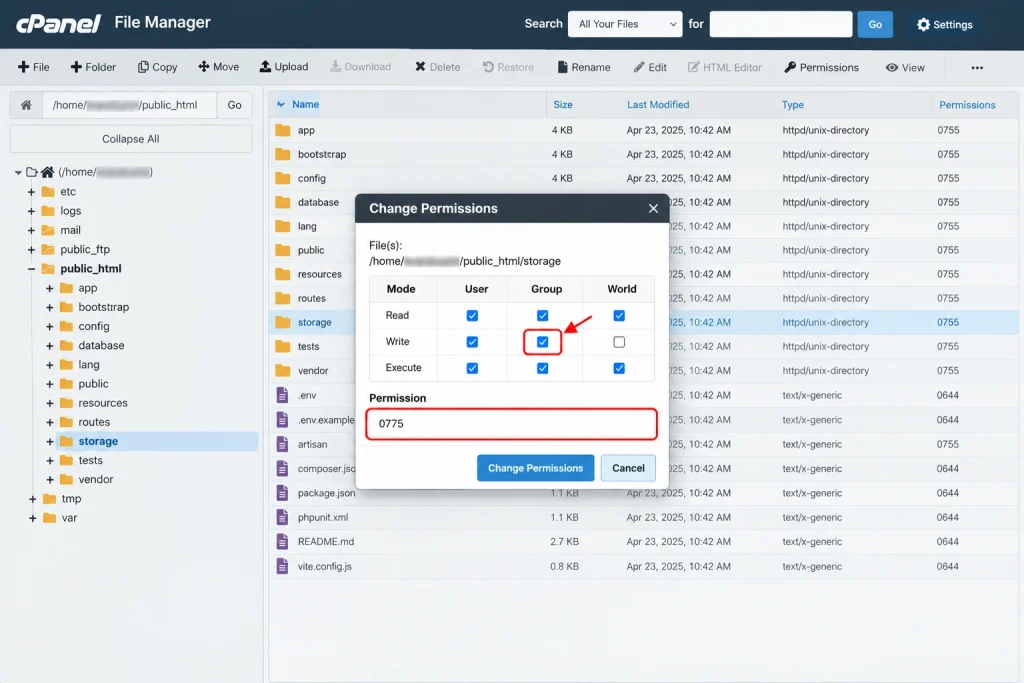
Laravel needs write access to exactly two directories: storage and bootstrap/cache. Everything else should be readable, not writable. Over-permissioning is a security problem, not a shortcut.
bash
# Directories readable and traversable, files readable
find /home/youruser/myproject -type d -exec chmod 755 {} \;
find /home/youruser/myproject -type f -exec chmod 644 {} \;

# The two directories Laravel writes to
chmod -R 775 storage bootstrap/cache
A note on advice you will see elsewhere: chown -R user:group generally does not work on shared cPanel hosting, because your account already owns its files and you lack the privileges to change ownership anyway. If you hit a permissions error that 775 does not solve, it is usually a PHP handler or open_basedir restriction, and that is a support ticket rather than a chmod.
Do not use 777. It is the reflexive fix for permission errors and it makes files world-writable, which on shared hosting means writable by processes that are not yours.
Step 7: Run Artisan Commands
Open Terminal in cPanel, or connect over SSH if your host provides it. Navigate to the project root, which is the directory containing artisan, and cache your configuration now that the production .env is in place.
bash
cd ~/myproject

php artisan config:cache
php artisan route:cache
php artisan view:cache

# Only if your app serves user-uploaded files
php artisan storage:link
Two cautions worth internalizing.
Re-run config:cache after any .env change. Once configuration is cached, Laravel stops reading .env at runtime. Editing .env and seeing no effect is one of the most common post-deployment confusions, and php artisan config:clear is the fix.
storage:link behaves differently under Method B. The symlink points at public/storage, but under the bridge-file structure your real web root is public_html. You will usually need to create the symlink manually to the correct target, or your uploaded images will 404 while everything else works.
If your host has no Terminal and no SSH, you can register a temporary route that calls Artisan::call(), but remove it immediately afterward. A publicly reachable route that runs Artisan commands is a serious hole.
Cron jobs need the full PHP binary path
If you are scheduling anything, do not write php in a cron command. On cPanel, plain php often resolves to an ancient system PHP or to nothing.
bash
# Laravel scheduler, using the explicit PHP 8.3 binary
* * * * * /opt/cpanel/ea-php83/root/usr/bin/php /home/youruser/myproject/artisan schedule:run >> /dev/null 2>&1
Find your exact binary path in Select PHP Version, or ask your host. Common paths are /usr/local/bin/php and /opt/cpanel/ea-phpXX/root/usr/bin/php.
Never Enable Debug Mode on a Live Site
APP_DEBUG=true on a production server is one of the most exploited misconfigurations in the PHP ecosystem. It is worth stating plainly, because a lot of deployment guides recommend it as a troubleshooting step, and an earlier version of this article did too.
When debug mode is on, any unhandled exception renders a page that displays your full environment variables, including database credentials, mail credentials, API keys, and your APP_KEY. It also shows server file paths, database queries, and your exact framework and package versions.
That is not only an information leak.
- A leaked
APP_KEYcan lead to remote code execution. Laravel’sdecrypt()deserializes decrypted data, so an attacker holding your key can forge a payload that executes code when it is decrypted. This is CVE-2018-15133 and it is still exploited. - The debug page itself has been an RCE vector. CVE-2021-3129 and CVE-2024-29291 both target Laravel’s Ignition error page when debug mode is on. When CVE-2021-3129 was published, exploitation was widespread within 24 hours precisely because so many production apps had debug enabled.
- Malware scans for it automatically. The Androxgh0st family specifically hunts Laravel apps with exposed
.envfiles or debug mode on, harvests credentials, then attempts RCE.
How to debug production safely instead:
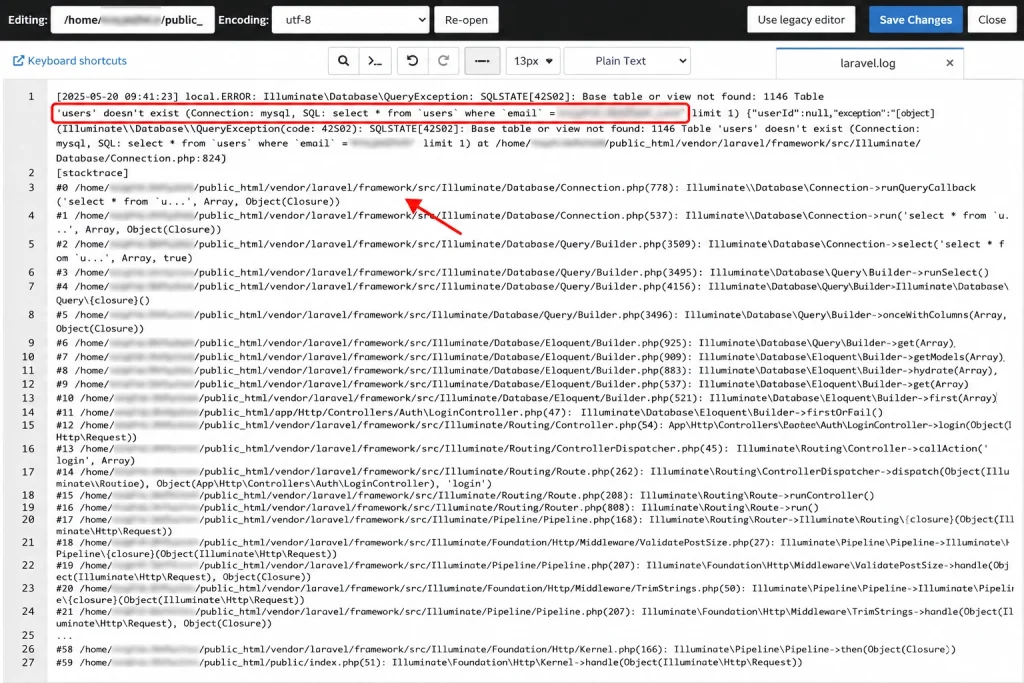
- Read the logs.
storage/logs/laravel.logcontains the same stack trace debug mode would have shown you, without publishing it. cPanel’s Errors tool covers server-level failures. - Use Laravel Telescope with an access gate, so debugging output is available to authenticated administrators only. Our guide to Laravel Debugbar covers the local-development equivalent, which is where that class of tool belongs.
- Reproduce locally. If the log does not tell you enough, copy the production data to a local environment and debug there.
- If you must enable it briefly, do it during a maintenance window with
php artisan downactive, and turn it off the moment you have the trace.
Check your own site right now: visit a URL that does not exist. If you get a detailed Laravel error page rather than a generic 404, debug mode is on and your credentials are already public.
Common Errors and What Causes Them
Most failed cPanel deployments produce one of five errors, and each has a specific cause rather than a general one.
| Error | Usual cause | Fix |
|---|---|---|
| 500 Internal Server Error, blank page | Wrong permissions on storage or bootstrap/cache, or missing APP_KEY | Set 775 on both directories. Run php artisan key:generate if APP_KEY is empty |
| 404 on every route except the homepage | .htaccess missing from the web root, or mod_rewrite disabled | Copy public/.htaccess into the document root. Confirm mod_rewrite with your host |
SQLSTATE[HY000] [1045] Access denied | cPanel prefix missing from database name or username, or user not added to the database | Copy exact strings from MySQL Databases. Confirm ALL PRIVILEGES granted |
Changes to .env have no effect | Configuration is cached | Run php artisan config:clear, then config:cache |
| Images upload but return 404 | storage:link symlink points somewhere Apache does not serve | Recreate the symlink targeting your real document root |
One meta-point on debugging order. Check the log file before changing anything. Half of these get “fixed” by someone changing four things at once, which means they never learn which one was actually wrong and it recurs on the next deployment.
For catching breakage the logs never report, such as layout and asset failures after a deploy, visual regression testing is worth adding to the workflow.
Frequently Asked Questions
Common questions about deploying Laravel on cPanel, from version requirements to what shared hosting can and cannot support.
Can you deploy a Laravel project on cPanel shared hosting?
Yes, and it works well for standard CRUD applications and marketing sites. The constraints are real though: queue workers cannot run as persistent daemons, the scheduler needs a per-minute cron that some hosts restrict, and Redis is usually unavailable. Applications relying on queues or websockets need a VPS.
Where should the Laravel public folder go on cPanel?
On an addon domain or subdomain, leave the project intact outside the web root and point the document root at /home/youruser/apps/myproject/public. On a primary domain where the document root is fixed, copy only index.php and .htaccess into public_html and edit the two require paths inside index.php.
Why does my Laravel site show a 500 error after deploying?
Usually permissions or a missing application key. Set storage and bootstrap/cache to 775, and confirm APP_KEY has a value in .env. If neither fixes it, read storage/logs/laravel.log for the actual exception rather than enabling debug mode.
Should I set APP_DEBUG to true to troubleshoot on cPanel?
No. On a live site it exposes your database credentials, API keys, and APP_KEY to anyone who triggers an error, and the debug page has been an active remote code execution vector under CVE-2021-3129 and CVE-2024-29291. Read storage/logs/laravel.log instead.
What PHP version do I need for Laravel on cPanel?
Laravel 13 requires PHP 8.3 minimum and works on 8.3, 8.4, and 8.5. Laravel 12 requires PHP 8.2. Select the version under Select PHP Version in cPanel. Anything below 8.2 will not run a currently supported Laravel release.
How do I run Artisan commands without SSH access?
Use cPanel’s Terminal, which most hosts include under Advanced. If your host provides neither Terminal nor SSH, you can register a temporary route calling Artisan::call(), then delete it immediately. A permanent route that executes Artisan commands is a serious security hole.
Why does the database connection fail when my credentials are correct?
cPanel prefixes both database names and usernames with your account name, so shop becomes youruser_shop. The other common cause is creating the user but never adding it to the database with ALL PRIVILEGES under Add User To Database.
Do I need Composer installed on the cPanel server?
Not if you run composer install --optimize-autoloader --no-dev locally and upload the resulting vendor directory. That is the more reliable route, since shared hosts often have memory limits that cause Composer to fail mid-install.
Why do my .env changes have no effect?
Configuration is cached. Once you run php artisan config:cache, Laravel reads from the compiled cache instead of .env. Run php artisan config:clear, make your change, then re-cache. This catches nearly everyone at least once.
How do I set up the Laravel scheduler on cPanel?
Add a cron job running schedule:run every minute, using the explicit PHP binary path rather than plain php, which often resolves to an outdated version. Some shared hosts limit cron frequency to every 5 or 15 minutes, so confirm your host’s policy before relying on per-minute scheduling.
Deploying a Laravel Project on cPanel Without Leaving Holes
Go back to that unzipped project sitting in public_html. The site works. Nothing looks wrong. And the single most valuable file in the application is one URL away from anyone who thinks to ask for it.
Getting this right is mostly structural rather than difficult. Keep the application outside the web root and point the document root at public, or bridge to it with two files if the host will not let you. Build with --no-dev locally. Copy the prefixed database strings exactly. Set 775 on two directories and 755 on the rest. Cache configuration after the .env lands, not before.
And leave APP_DEBUG off. It is the one setting where the convenient choice and the safe choice point in opposite directions, and it is the reason a working deployment and a secure deployment are not the same thing. When did you last check what your own production site returns for a URL that does not exist?