

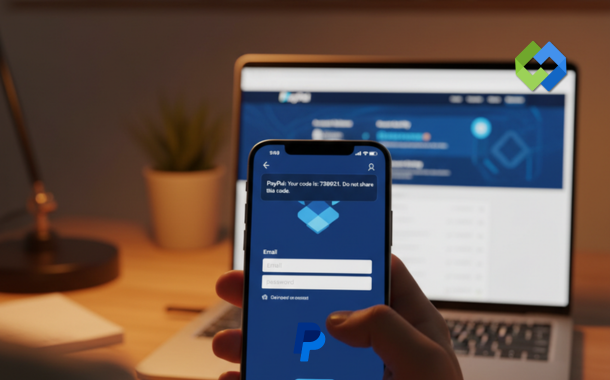
You never turned on two-factor authentication.
I have seen this happen more times than I can count. A friend lost his freelance earnings in one afternoon. A small business owner watched her client payments vanish before she could blink. And in both cases, the fix was simple, free, and took less than three minutes to set up.
Table of Contents
What Is Two-Factor Authentication and Why Does PayPal Need It
Two-factor authentication (2FA) adds a second layer of verification when you log in. After you enter your password, PayPal asks you to confirm your identity with something only you can access in real time. Usually that is a one-time code sent to your phone or generated by an app.
Here is what nobody tells you: passwords alone are not enough anymore. Data breaches happen constantly. In 2023, PayPal itself confirmed a credential stuffing attack that exposed roughly 35,000 accounts. Those were accounts with perfectly good passwords. The attackers had stolen username and password combinations from other breached sites and simply tried them on PayPal.
Two-factor authentication stops that cold. Even if someone has your password, they cannot log in without your phone.
PayPal calls its version of 2FA “2-step verification.” The name is slightly different but the concept is identical. Once it is active, every login from an unrecognized device triggers an additional verification step.
The Two Main Methods PayPal Offers for 2FA
PayPal gives you two choices for your second factor.
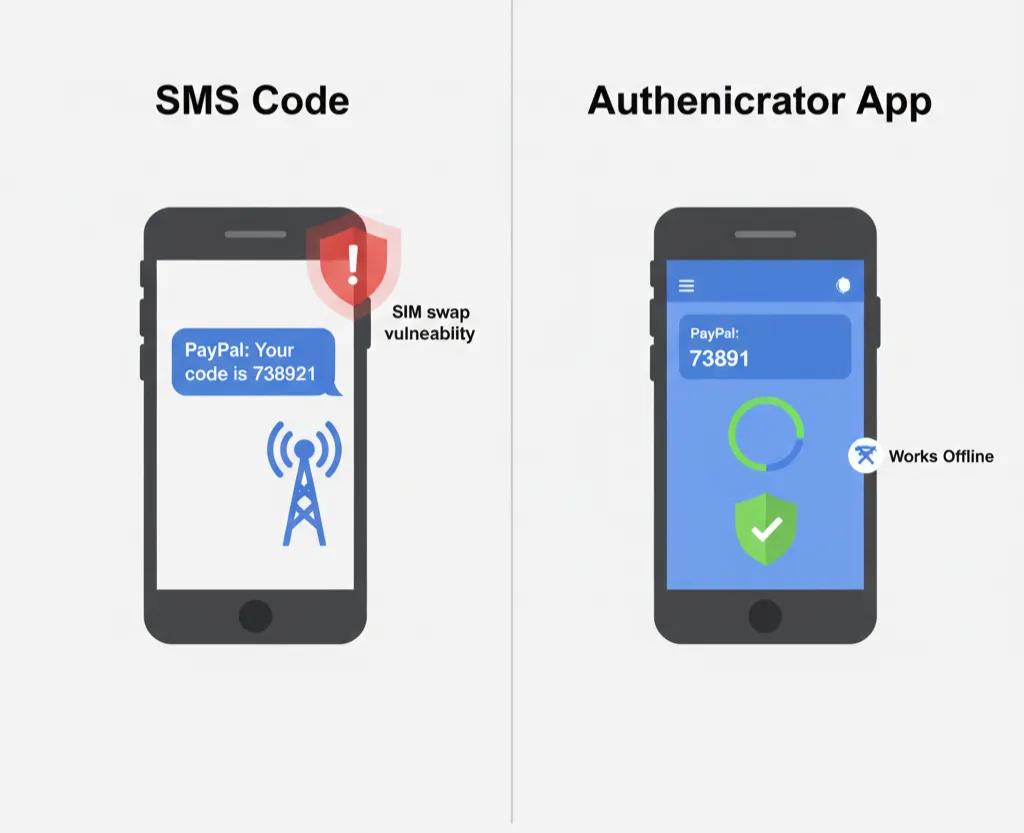
- SMS text message: PayPal sends a six-digit code to your registered mobile number. You type it in. Done. This is the most common method and the easiest to set up.
- Authenticator app: An app on your phone generates a time-based six-digit code that refreshes every 30 seconds. You open the app, read the code, and enter it. This method works without cell service and is considered more secure than SMS.
Both methods are free. Both work on mobile and desktop. The authenticator app requires a one-time setup step but is harder for attackers to intercept.
My honest take: use the authenticator app if you handle significant money through PayPal. Use SMS if you want the faster setup and do not mind a slightly lower security ceiling. Either option is dramatically better than no 2FA at all.
How to Set Up PayPal Two-Factor Authentication on Desktop
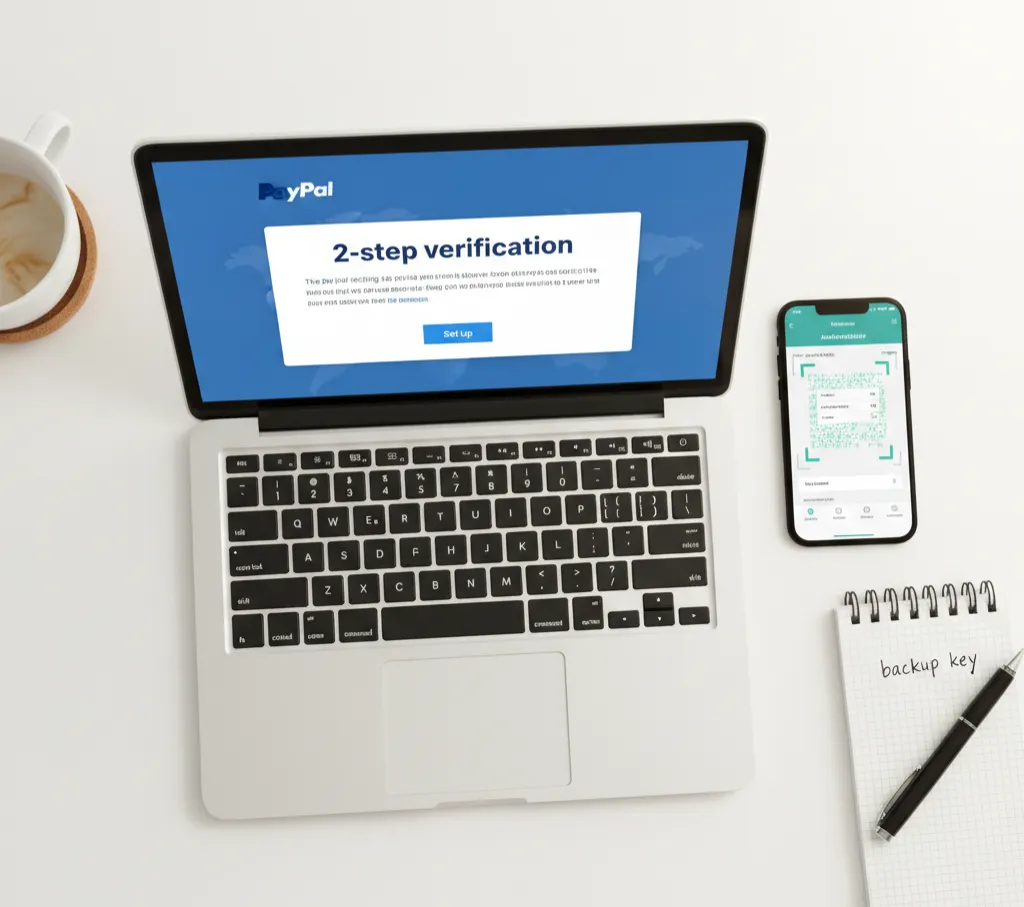
This is the full process on a computer browser. It takes about two to three minutes.
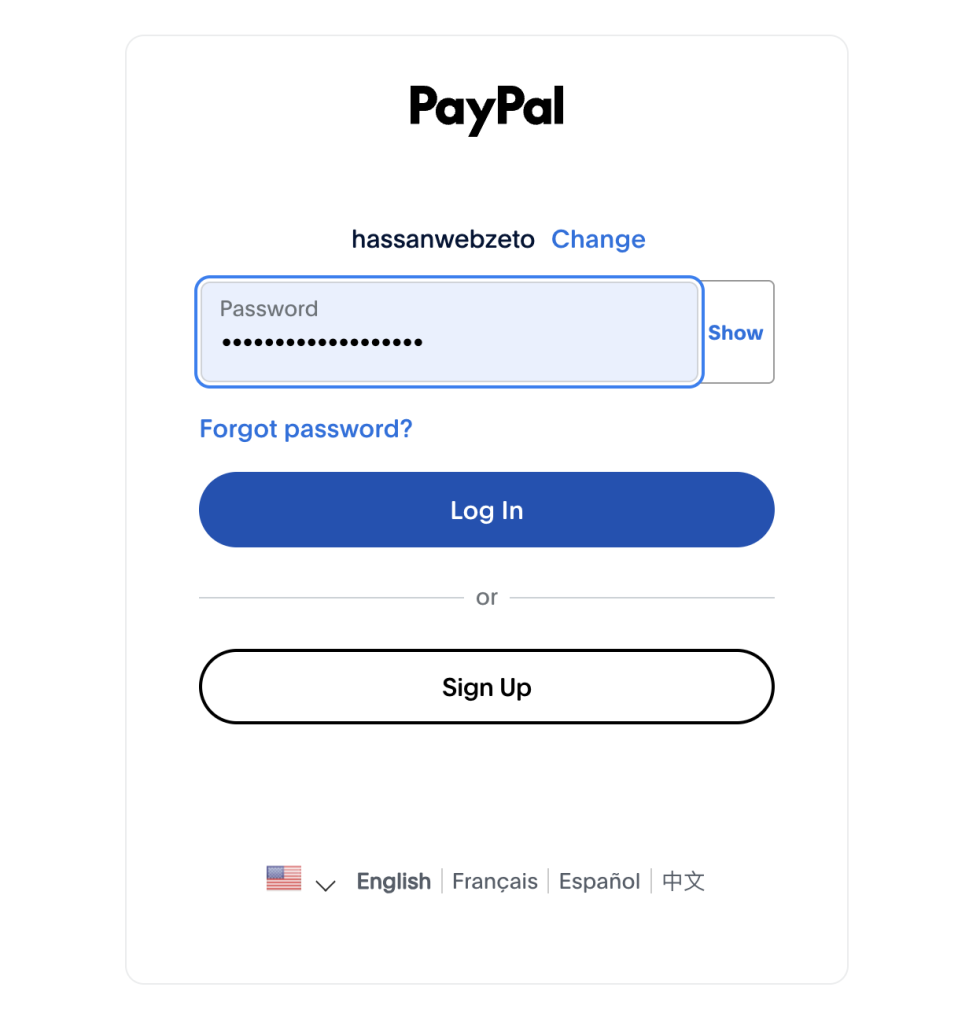
Step 1: Log into your PayPal account at paypal.com using your email and password.
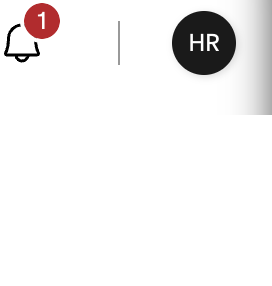
Step 2: Click the Profile button in the top right corner of the screen.
Step 3: Click “Security” this opens your security settings dashboard.
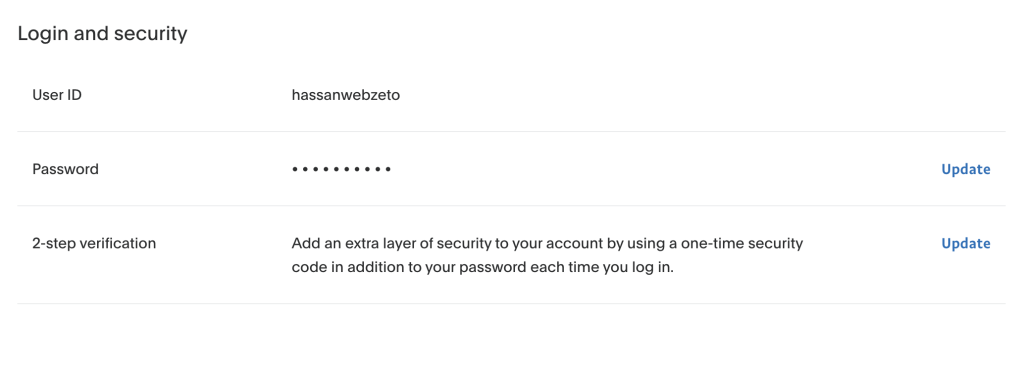
Step 4: Find “2-step verification” Click the “Set Up” button next to it. If it’s already activated, you’ll see an “Update” button instead.
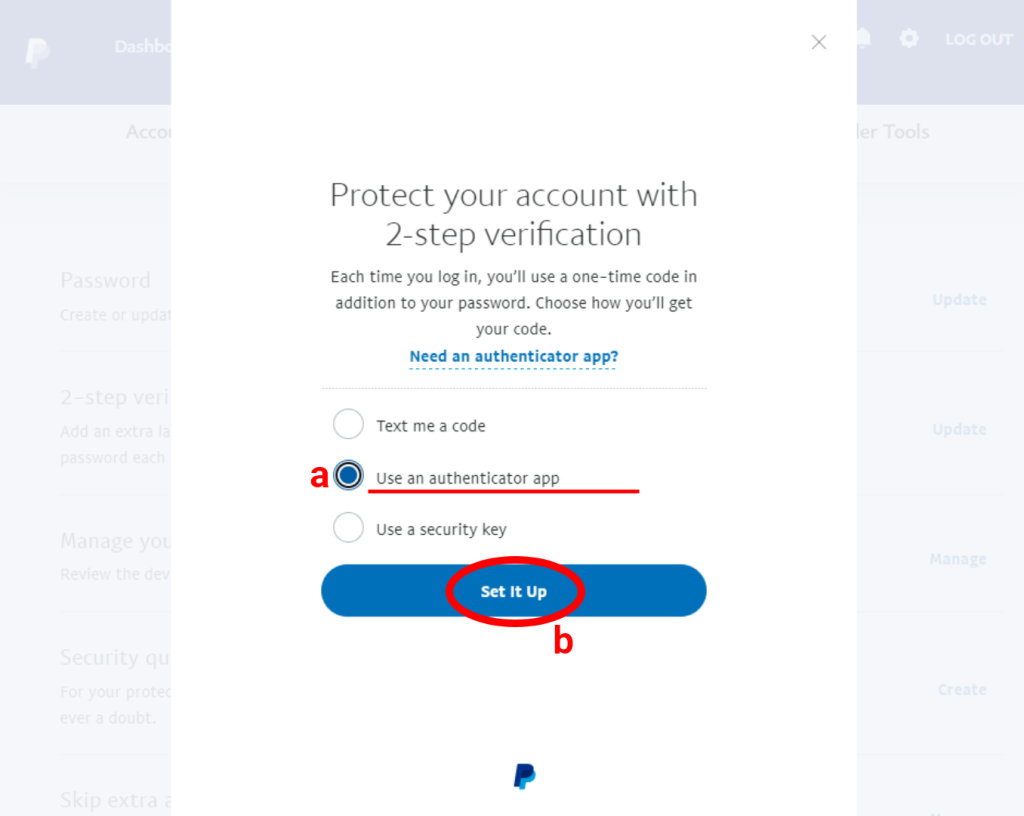
Step 5: Choose your preferred method. You will see two options: “Use an authenticator app” or “Text me a code.” Select the one you want.
Step 6 (SMS method): Enter your mobile phone number if it is not already saved. PayPal sends a verification code immediately. Type it in the box and click “Confirm.” That is it.
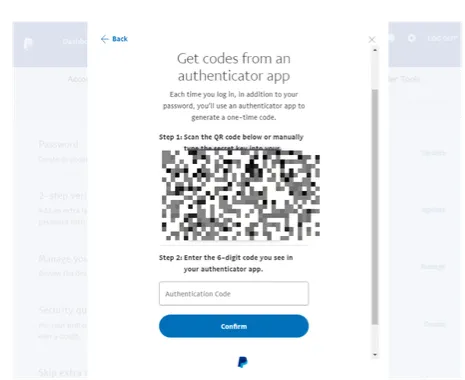
Step 6 (Authenticator app method): PayPal displays a QR code on screen. Open your authenticator app (Google Authenticator, Authy, or Microsoft Authenticator all work), tap the option to add a new account, and scan the QR code. The app generates a six-digit code. Enter that code into PayPal and click “Confirm.”
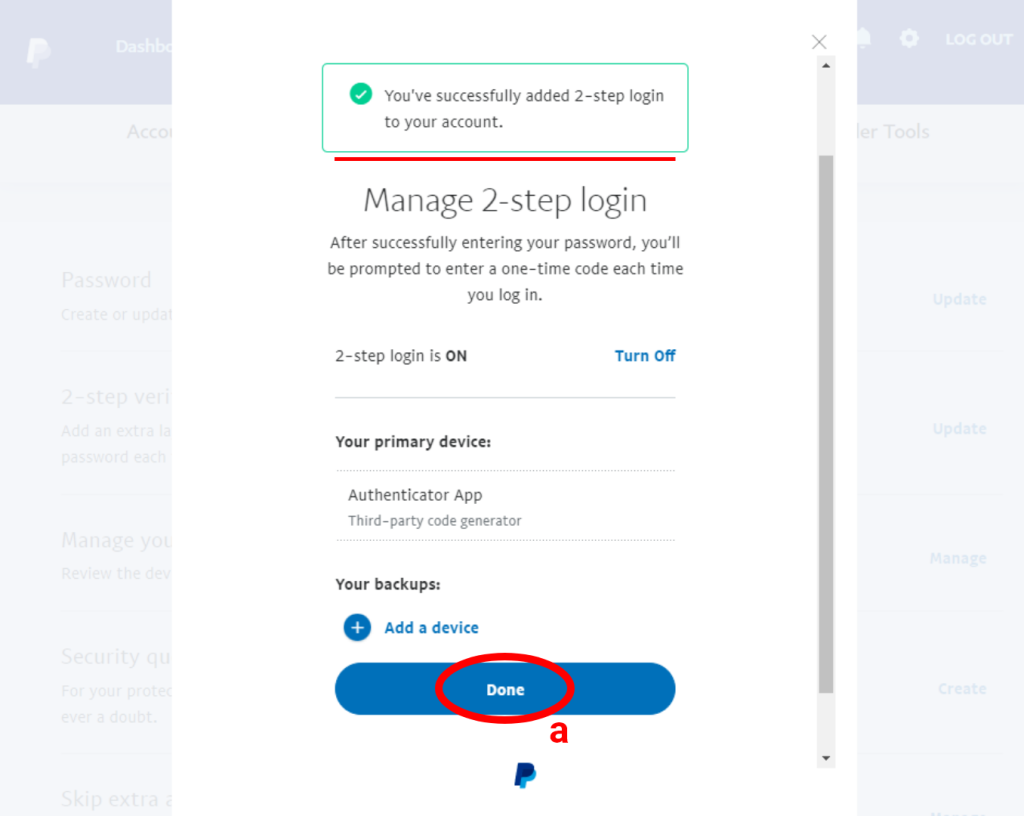
Step 7: PayPal confirms the setup is complete and shows 2-step verification as active on your security page.
How to Set Up PayPal 2FA on the Mobile App
The process on the PayPal mobile app is almost identical but the navigation is slightly different.
Open the PayPal app on your phone. Tap your profile icon or initials in the top left corner. Scroll down and tap “Settings.” Then tap “Security.” You will see the option for “2-step verification.” Tap “Set Up” and follow the same steps described above.
The mobile app setup took me about 90 seconds the last time I went through it. The QR code method works great on desktop since you scan it with your phone. On mobile, if you try to set up the authenticator app method, your authenticator and PayPal are on the same device. In that case, PayPal shows you a setup key (a long alphanumeric string) that you can manually enter into your authenticator app instead of scanning the QR code.
Which Authenticator App Should You Use With PayPal
This is where I have strong opinions based on personal testing.
Google Authenticator is the simplest. It is clean, fast, and works reliably. The downside is that codes are stored only on your device. If you lose your phone, recovery is painful without proper backups.
Authy is my personal recommendation for most people. It backs up your 2FA codes encrypted to the cloud. If you lose your phone, you can restore everything on a new device. Authy also lets you use 2FA on multiple devices simultaneously, which is useful if you switch between a phone and a tablet.
Microsoft Authenticator is excellent if you are already in the Microsoft ecosystem. It supports cloud backup as well and has a clean interface.
1Password and Bitwarden are password managers that also handle 2FA codes. If you use either of these, you can store your PayPal 2FA code generator there alongside your password. This is convenient but slightly reduces security since your password and second factor live in the same place.
For most PayPal users who want solid security without complexity, Authy wins. For users who want maximum separation of factors, a dedicated app like Google Authenticator with manual backup is the way to go.
What Happens if You Lose Access to Your 2FA Method
If you lose your phone and cannot receive SMS codes, you need to contact PayPal support directly. The recovery process involves verifying your identity through other account information: linked bank account details, recent transaction history, billing address, and sometimes a government ID upload.
The process is not instant. It can take 24 to 72 hours depending on volume and verification complexity. This is frustrating but it exists to protect you from someone else trying to social engineer their way into your account.
If you used an authenticator app and lost your phone, the recovery depends on whether you backed up your codes. This is the main argument for using Authy over Google Authenticator for most people. Authy restores in minutes. Google Authenticator without a backup requires going through PayPal’s account recovery process.
My recommendation: when you set up your authenticator app, write down or screenshot the backup code or setup key PayPal provides. Store it somewhere offline and secure. A printed piece of paper in a locked drawer works fine. Cloud storage also works if it is properly secured. This 30-second step can save you hours of frustration later.
SMS vs Authenticator App for PayPal 2FA
| Feature | SMS Code | Authenticator App |
| Setup time | 1 minute | 3 minutes |
| Works without cell service | No | Yes |
| Resistant to SIM swapping | No | Yes |
| Requires smartphone | No (any phone works) | Yes |
| Recovery if phone lost | PayPal support | Depends on backup |
| Security level | Good | Better |
| Recommended for | Casual users | Regular/business users |
SIM swapping is worth mentioning here. It is an attack where a criminal convinces your mobile carrier to transfer your phone number to a SIM card they control. Once they have your number, they receive your SMS codes. It is not common but it happens, and high-value accounts are targets. If you have significant money flowing through PayPal, the authenticator app removes this risk entirely.
Enabling 2FA on PayPal Business Accounts
Business account setup is the same as personal accounts. Log in, go to Settings, click Security, and follow the same steps.
However, if multiple people access your business PayPal account, each user under a business account with multi-user access can have their own login credentials. Each of those users should set up 2FA individually on their own login.
One thing that trips up business owners: if you use PayPal through a payment platform like Shopify, WooCommerce, or Stripe, those integrations use API keys rather than your login credentials. Two-factor authentication does not apply to API-based transactions. It only protects the login to your PayPal dashboard. This distinction matters because you should still protect your API keys separately through those platforms.
Common Problems During PayPal 2FA Setup
“I am not receiving the SMS code.” Check that your phone number saved in PayPal is correct. Go to Settings, then Account, to verify. Also check if your carrier is blocking shortcode messages. In some regions, SMS shortcodes from financial services get flagged by carriers. Switching to the authenticator app usually solves this.
“The QR code is not scanning.” Make sure your phone camera is clean and you have adequate lighting. The QR code must fill the scanning frame in your authenticator app. If scanning still fails, look for a “Can’t scan the QR code?” link or option below the code in PayPal. This gives you a manual setup key.
“The code I enter says it is invalid.” Authenticator app codes are time-sensitive. Make sure your phone clock is set to automatic/network time. An incorrect phone time causes codes to be out of sync with PayPal’s servers. This is the most common cause of invalid code errors.
“PayPal is not asking me for a second factor.” This usually means PayPal has recognized your current device as trusted. The second factor appears on new or unrecognized devices. Try logging in from a different browser or an incognito window to confirm 2FA is actually active.
Frequently Asked Questions
Can I have both SMS and an authenticator app active at the same time on PayPal?
Currently PayPal allows only one active 2FA method at a time. You choose either SMS or the authenticator app. If you want to switch methods later, you can disable one and enable the other through the Security settings page.
Does PayPal 2FA work when I am traveling internationally?
If you use SMS, you need to receive messages on your registered number. International roaming or a temporary SIM change can cause issues. The authenticator app is the better choice for frequent travelers since it works entirely offline without any cellular requirement.
Will turning on 2FA affect my PayPal business transactions or API integrations?
No. Two-factor authentication only applies to human logins through the website or app. Automated transactions via API, recurring billing, and payment buttons are not affected. Your checkout integrations will continue working exactly as before.
Is PayPal 2FA actually necessary if I have a strong password?
Yes, and here is why. Strong passwords protect against brute force attacks. But credential stuffing attacks use your real password from another breached site. If you have ever reused a password or had any account compromised elsewhere, your password could already be in an attacker’s list. Two-factor authentication is the barrier that stops them even when they have the right password.
How do I turn off PayPal 2-step verification if I need to?
Go to Settings, then Security, find “2-step verification,” and click “Turn Off.” PayPal asks you to confirm. This takes effect immediately. You can turn it back on at any time. I would not recommend disabling it permanently, but temporarily disabling it during a phone upgrade and re-enabling it on your new device is a completely reasonable workflow.
Does PayPal charge anything for 2FA?
No. Two-factor authentication is completely free for all personal and business PayPal accounts. There is no premium tier required.
Conclusion
Two-factor authentication on PayPal is not complicated. It is not expensive. It does not slow down your daily use in any meaningful way. What it does is add a wall between your money and anyone who manages to get hold of your password.
Set it up today. Use the authenticator app if you can. Back up your recovery key the moment you create it. Then you can use PayPal with genuine peace of mind, knowing that a stolen password alone is not enough to reach your funds.
The three minutes you invest in this setup is one of the highest-return security decisions you can make for your financial accounts.