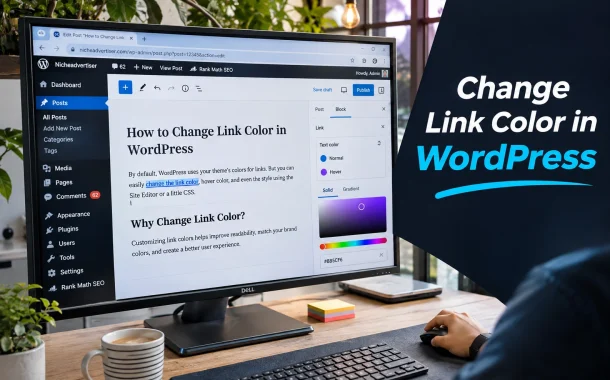
There are several ways to change link color in WordPress, and the right one depends on your theme and page builder. Block themes use the Site Editor and theme.json. Classic themes often use the Customizer or Additional CSS. Page builders like Elementor and Divi have their own global settings, and themes like Astra add link color options to the Customizer. You will learn each method step by step, how to set a hover color, how to change the color of a single link, why the color sometimes refuses to change and how to keep your links readable for every visitor.
Quick answer: To change link color in WordPress, open Appearance, then Editor, then Styles, then Colors, and set the Link color for your whole site in a block theme. In a classic theme, open Appearance, then Customize, and use the theme’s color settings or add CSS such as a { color: #2D6BFF } in Additional CSS. Page builders like Elementor and Divi have their own global link color settings.
Table of Contents
Which Method Should You Use to Change Link Color in WordPress?
The right method depends on how your site is built. Check your theme type first by opening the Appearance menu. If you see Editor, you have a block theme. If you see Customize, you most likely have a classic theme. Page builders override both, so check them too.
Quick Method Finder
| Your setup | Best method | Where to find it |
|---|---|---|
| Block theme (Twenty Twenty-Five and similar) | Site Editor Styles | Appearance, Editor, Styles, Colors |
| Classic theme with color options | Customizer | Appearance, Customize, Colors |
| Classic theme without options | Additional CSS | Appearance, Customize, Additional CSS |
| Astra theme | Customizer global colors | Customize, Global, Colors |
| Elementor | Site Settings | Elementor menu, Site Settings, Theme Style |
| Divi | Theme Customizer | Divi, Theme Customizer, General Settings |
| Custom or child theme | theme.json or style.css | Theme files |
Before You Start
Pick your new link color and a hover color, and test them for contrast first. Write down the hex codes, such as #2D6BFF for links and #1A4FCC for hover. If you are editing theme files, make a backup or use a staging site.
How to Change Link Color in WordPress Block Themes
In block themes, the Site Editor controls link colors for the whole site through Global Styles. This is the cleanest way to change link color in WordPress, because the change applies everywhere and survives theme updates. You do not need any code, and the preview shows the result instantly.
Steps in the Site Editor
- Go to Appearance and click Editor.
- Click Styles, then the pencil or Edit styles icon.
- Open Colors and click Links.
- Pick a color for the Default state.
- Switch to Hover and pick a second color.
- Click Save.
WordPress explains Global Styles in more detail in its Styles overview.
Change Link Color for One Block Type
In the same Styles panel, open Blocks, choose a block such as Paragraph or Navigation and set a link color for that block only. This is useful when you want menu links white on a dark header but body links in your brand color.
How to Change Link Color in Classic Themes
Classic themes handle colors through the Customizer. Many themes include a link color option under Colors or Typography. If yours does not, the Additional CSS panel lets you add a few lines of CSS that apply across the whole site. Both options update live in the preview before you publish.
Use the Theme’s Color Settings
Go to Appearance, then Customize, and look for Colors, Typography or Global. The option might be called Link Color, Accent Color or Primary Color. Change it, check the preview and click Publish. The WordPress Customizer documentation covers the panel in more detail.
Add Custom CSS
If there is no link color setting, open Additional CSS in the Customizer and paste this:
.entry-content a {
  color: #2D6BFF;
}
.entry-content a:hover,
.entry-content a:focus {
  color: #1A4FCC;
  text-decoration: underline;
}
Using .entry-content limits the change to post and page content, so your menu and footer keep their own styles. Remove that prefix to change every link on the site.
How to Change Link Color in WordPress With theme.json
If you build or maintain a block theme or child theme, theme.json is the developer way to set link colors. It controls the defaults that appear in the Site Editor, so clients get your brand colors from the start. We use this on almost every custom theme we build for clients.
Example theme.json Settings
{
  "version": 3,
  "styles": {
    "elements": {
      "link": {
        "color": { "text": "#2D6BFF" },
        ":hover": {
          "color": { "text": "#1A4FCC" }
        }
      }
    }
  }
}
The WordPress global settings and styles guide lists every element you can style this way.
Use a Child Theme for Changes
Never edit theme.json or style.css in a parent theme you downloaded, because the next update will erase your changes. Create a child theme, or use the Site Editor, which saves changes in the database instead of the theme files.
How to Change Link Color in Elementor, Divi and Astra
Page builders and popular themes often override the default WordPress settings. If you change the color in one place and nothing happens, the builder is probably in control. Here is where the link color setting lives in the three tools we see most often on client sites.
Elementor
Open the Elementor editor, click the menu icon and go to Site Settings, then Theme Style, then Typography. Set the Link Color for normal and hover states. For a single widget, use the widget’s own Style tab if it offers a link color option.
Divi
Go to Divi, then Theme Customizer, then General Settings, then Typography, and set the Body Link Color. Inside a Divi module, open Design, then Link, to change the color for that module only.
Astra
Open Appearance, then Customize, then Global, then Colors. Astra gives you separate Link Color and Link Hover Color settings. Changes apply site-wide, including posts, pages and widgets.
How to Change the Color of a Single Link
Sometimes you only need one link in a different color, such as a call to action inside a blog post. The block editor lets you do this without CSS. You can also add a custom class for links you reuse often, which keeps your styling consistent.
In the Block Editor
- Select the paragraph that contains the link.
- Open the block settings sidebar and click Styles.
- Under Color, click Link and choose a color.
This changes all links in that paragraph. To color one word only, highlight it and use the Highlight option in the toolbar, though this changes text color rather than link styles.
With a Custom CSS Class
Add a class like cta-link in the block’s Advanced panel, then add this to Additional CSS:
.cta-link a {
  color: #E85D04;
  font-weight: 600;
}
Why Your Link Color Is Not Changing
If you change link color in WordPress and nothing happens, the cause is usually caching, CSS specificity or a builder overriding your setting. Work through the checks below before assuming the setting is broken. In our experience, caching is the cause about half the time.
Common Causes and Fixes
| Problem | Likely cause | Fix |
|---|---|---|
| Change does not show | Page or browser cache | Clear your caching plugin and hard reload |
| Only some links change | Builder or block settings override | Check Elementor, Divi or block-level colors |
| CSS has no effect | Theme CSS is more specific | Use a more specific selector |
| Change disappears after update | Edited parent theme files | Move changes to a child theme or Site Editor |
| Hover color does not work | Missing :hover rule | Add a:hover and a:focus rules |
Avoid Overusing !important
Adding !important forces a rule to win, but it makes future changes harder. Use a more specific selector first, such as .site-content .entry-content a. Keep !important as a last resort. If you work with a custom theme, our post on the Bridge WordPress theme shows how heavy themes can complicate styling.
Make Your Link Colors Accessible
Link color is a usability choice as much as a design one. Visitors with low vision or color blindness need to tell links apart from normal text. Accessibility guidelines set clear contrast rules, and following them also helps every visitor read your content on a phone in bright sunlight.
Contrast Rules to Follow
- Link text should have at least a 4.5:1 contrast ratio against the background, as set out in WCAG contrast guidance.
- If links are not underlined, the link color should have at least 3:1 contrast against surrounding text, according to the WCAG use of color guidance.
- Keep a visible focus style for keyboard users.
Keep Underlines in Body Text
Underlined links inside paragraphs are the easiest to spot. You can remove underlines in menus and buttons, but keep them in body text. Our ADA accessibility guide for Shopify merchants covers more of these rules, and they apply to WordPress too.
FAQs
Here are answers to common questions about link colors in WordPress.
How do I change link color in WordPress without a plugin?
In a block theme, go to Appearance, then Editor, then Styles, then Colors, and set the Link color. In a classic theme, use Appearance, then Customize, and either your theme’s color settings or the Additional CSS panel. Neither method needs a plugin. Both changes apply across your whole site and update live in the preview before you save or publish.
How do I change the link hover color in WordPress?
In the Site Editor, open Styles, then Colors, then Links, and switch to the Hover tab to choose a color. In a classic theme, add a CSS rule such as a:hover with your hover color in Additional CSS. Elementor, Divi and Astra all have separate hover color settings in their global link options, so check those first if you use them.
How do I change hyperlink color in a single WordPress post?
Select the paragraph block that contains the link, open the Styles tab in the block sidebar and set a Link color under Color. That changes the links in that paragraph only. For a reusable style, add a custom CSS class in the block’s Advanced panel and define the color for that class in Additional CSS so you can apply it anywhere.
Why is my WordPress link color not changing?
The most common reasons are caching, a page builder overriding your setting or theme CSS that is more specific than your rule. Clear your caching plugin and browser cache first. Then check Elementor, Divi or block-level color settings. If you added CSS, use a more specific selector. Edits made to parent theme files can also disappear after a theme update.
How do I change link color in Elementor?
Open the Elementor editor, click the menu icon and go to Site Settings, then Theme Style, then Typography. Set the Link Color for both normal and hover states, then click Update. This applies across every page built with Elementor. For a single widget, check its Style tab for a link color option, which overrides the global setting for that widget.
Can I change link color using theme.json?
Yes. In a block theme or child theme, add a styles section with elements and link to your theme.json file. Set color text for the normal state and add a hover entry with its own color. These values become the defaults in the Site Editor. Edit theme.json in a child theme, not the parent, so updates do not erase your changes.
What link color is best for accessibility?
Choose a color with at least a 4.5:1 contrast ratio against your background. If links are not underlined, the link color also needs at least 3:1 contrast against the surrounding body text. Dark blues and greens on white usually pass. Test your colors with a contrast checker and keep underlines inside paragraphs so links are easy to spot for every reader.
Will changing link color affect my menu and buttons?
It can. A global rule like a { color } changes every link, including menus, buttons and footer links, unless they have their own styles. To limit the change to post content, target .entry-content a instead. In block themes, you can set different link colors for the Navigation block and the Button block in the Styles panel, which keeps your header design intact.
Conclusion
You can change link color in WordPress in several ways, and the best one depends on your setup. Block themes use the Site Editor Styles panel or theme.json. Classic themes use the Customizer or a few lines of Additional CSS. Elementor, Divi and Astra each have their own global link color settings that override the defaults, so start there if your site uses them.
Whatever method you use, set a hover color, test contrast and clear your cache before you decide something is broken. Ethan’s site went from default blue to his brand green in one Site Editor change, plus a small CSS rule for his menu. If you are planning a bigger redesign, our guides on adding a banner in WordPress and choosing a content management system are good next reads. Small styling details like this add up, and our tutorial on how to wrap text around images in HTML is another quick win for cleaner posts. Which method will you try first on your site?